Step 4: Monitoring the feeds back On-premises
To complete this last step, we will require VLC installed in your system. Download and install it from here if you don’t have yet.
-
Go to the us-east-1 (N. Virginia) region MediaConnect Console. Click on the “streaming-flow”. Go to Outputs tab. Add a new output, by clicking on the “Add Output” button. Name it as
output-to-ground. Select “SRT Listener” as the Protocol. Set9000as the Port number. Select CIDR allow list as0.0.0.0/0. Then click Add output button.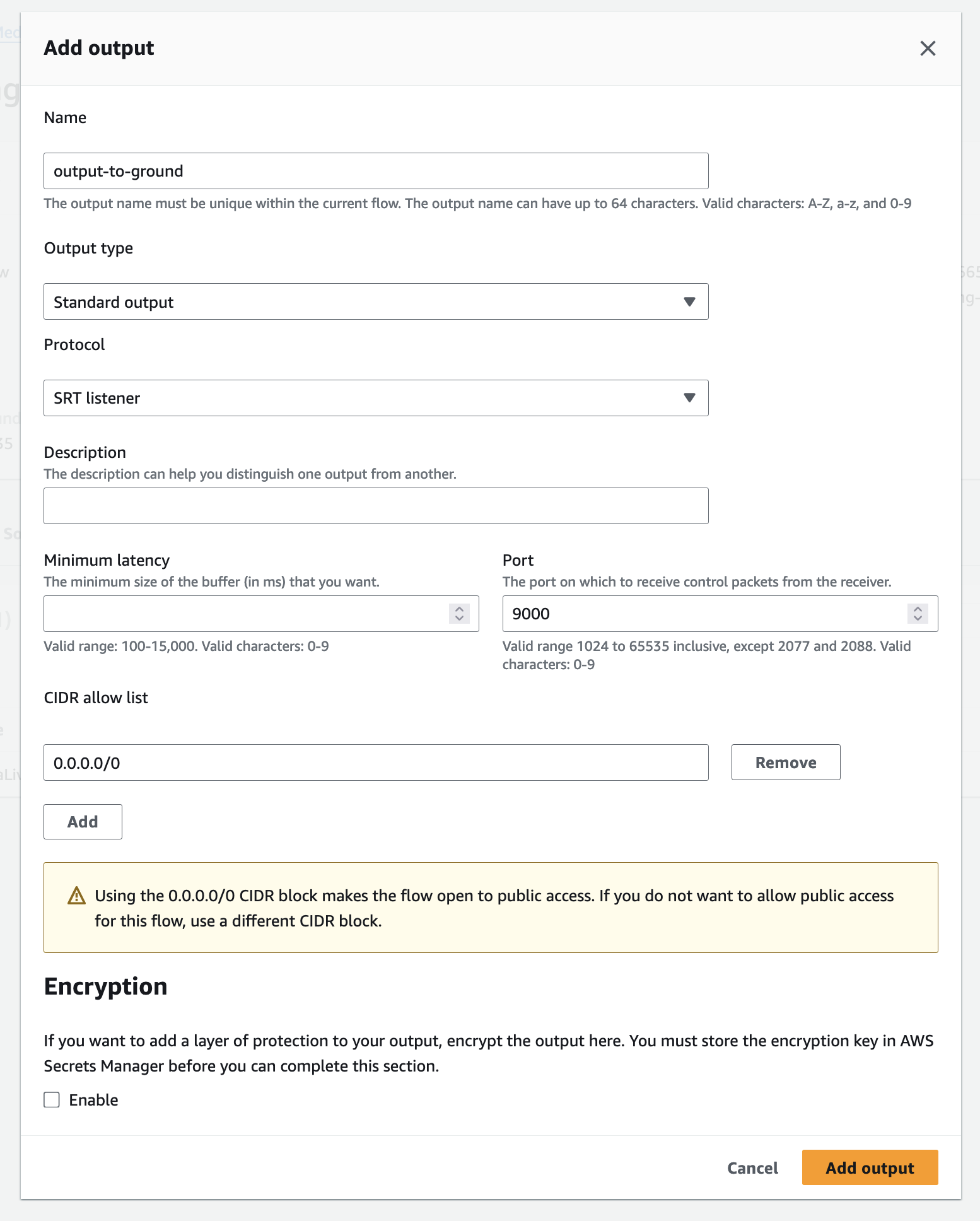
Best practice is to only allow CIDRs from the destination site that will consume the feed.
-
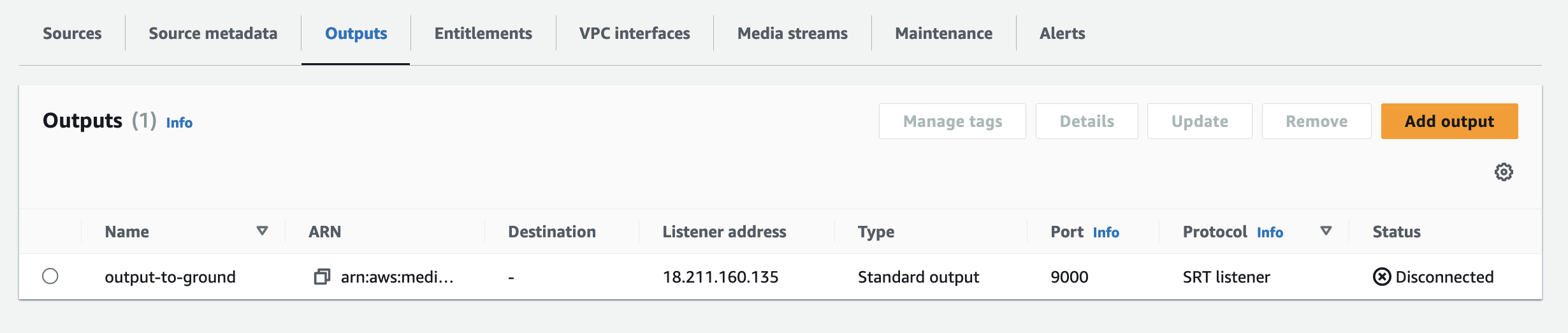
Check the output created, and take note of the Listener address and the Port information.
-
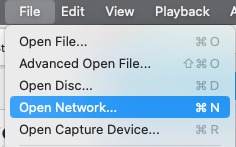
Open VLC on your laptop. In the VLC Player go to the top menu bar menu and select File > Open Network… drop-down.
-
Type the SRT Listener endpoint address as follows
srt://<listener address>:9000.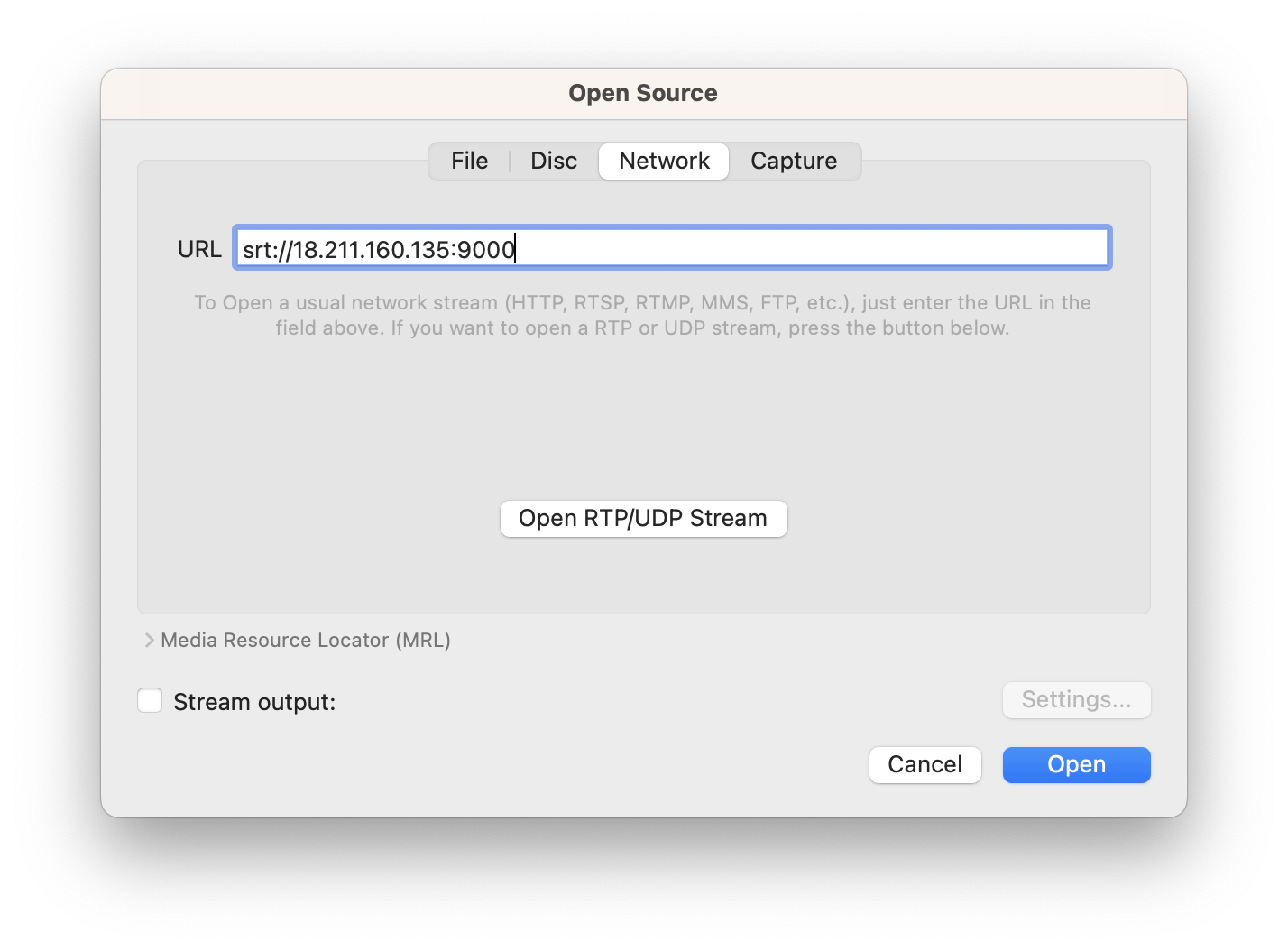
-
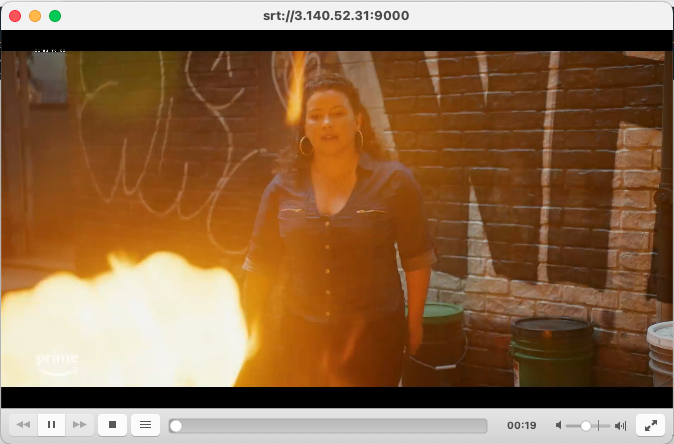
Congratulations! You should have audio and video in your VLC Player.
-
Now, let’s check the HLS distribution. Go back to the MediaLive Console in the us-east-1 (N. Virginia) region. Click on Workflow wizard, click the workflow “cross-region-emx-to-eml-to-hls-stream-distribution”. From here you can monitor the Direct to Consumer workflow from multiple points.
-
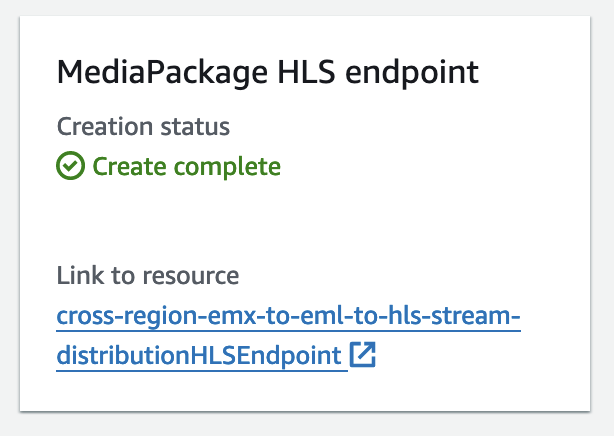
Click on the link to resource url link within the MediaPackage HLS endpoint section.
-
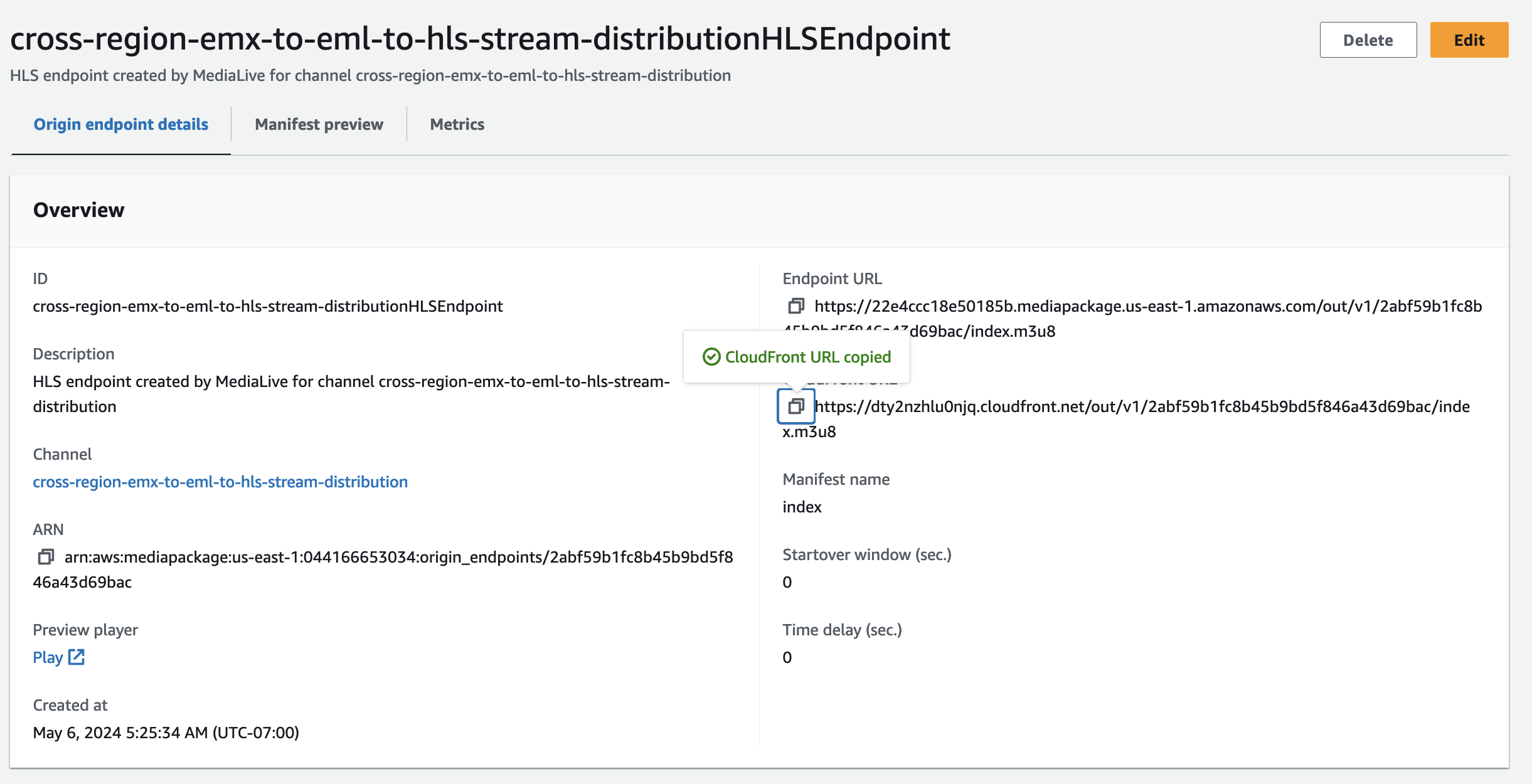
Now you will neeed to copy the CloudFront URL.
-
Back in VLC, go to the top menu bar menu and select File > Open Network… drop-down. Then paste the URL of the CloudFront distribution and click the “open” button in VLC.
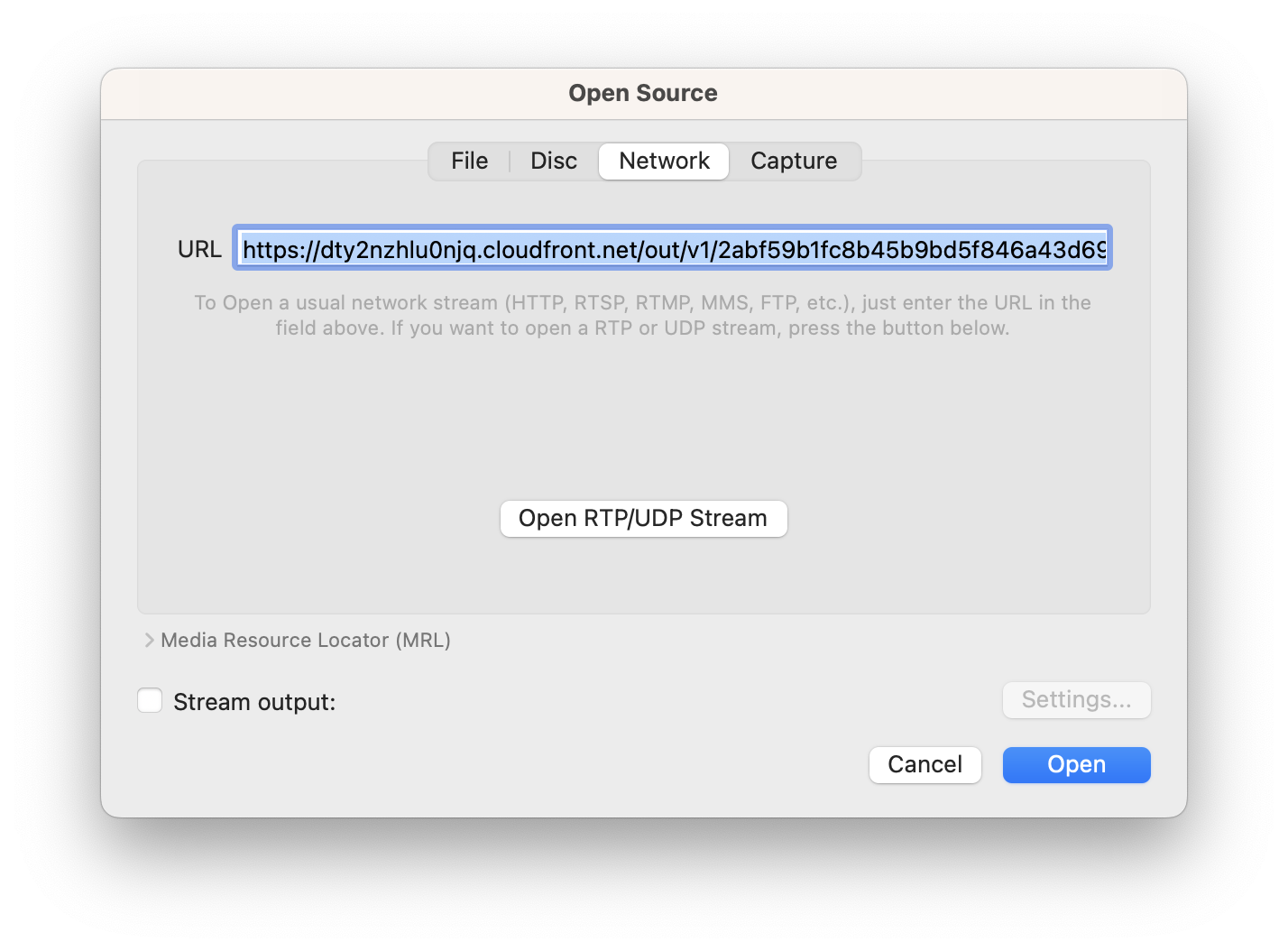
-
Congratulations again! You should see the index.m3u8 manifest playing from us-east-1 (N. Virginia) region.