Step 1: Creating MediaConnect Flow in other Regions
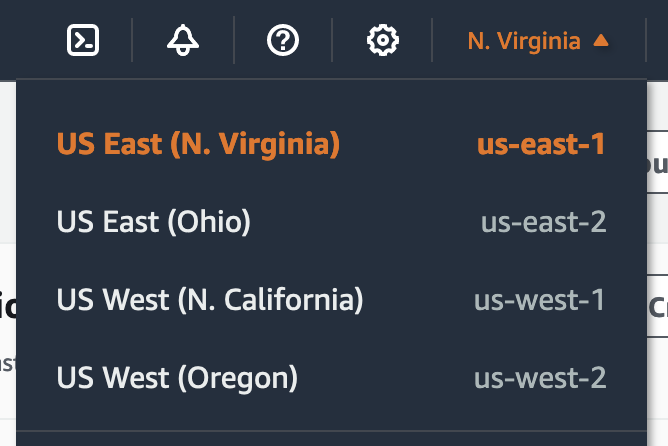
- Go to MediaConnect service within the console and change the Region to us-east-1 (N. Virgina).
-
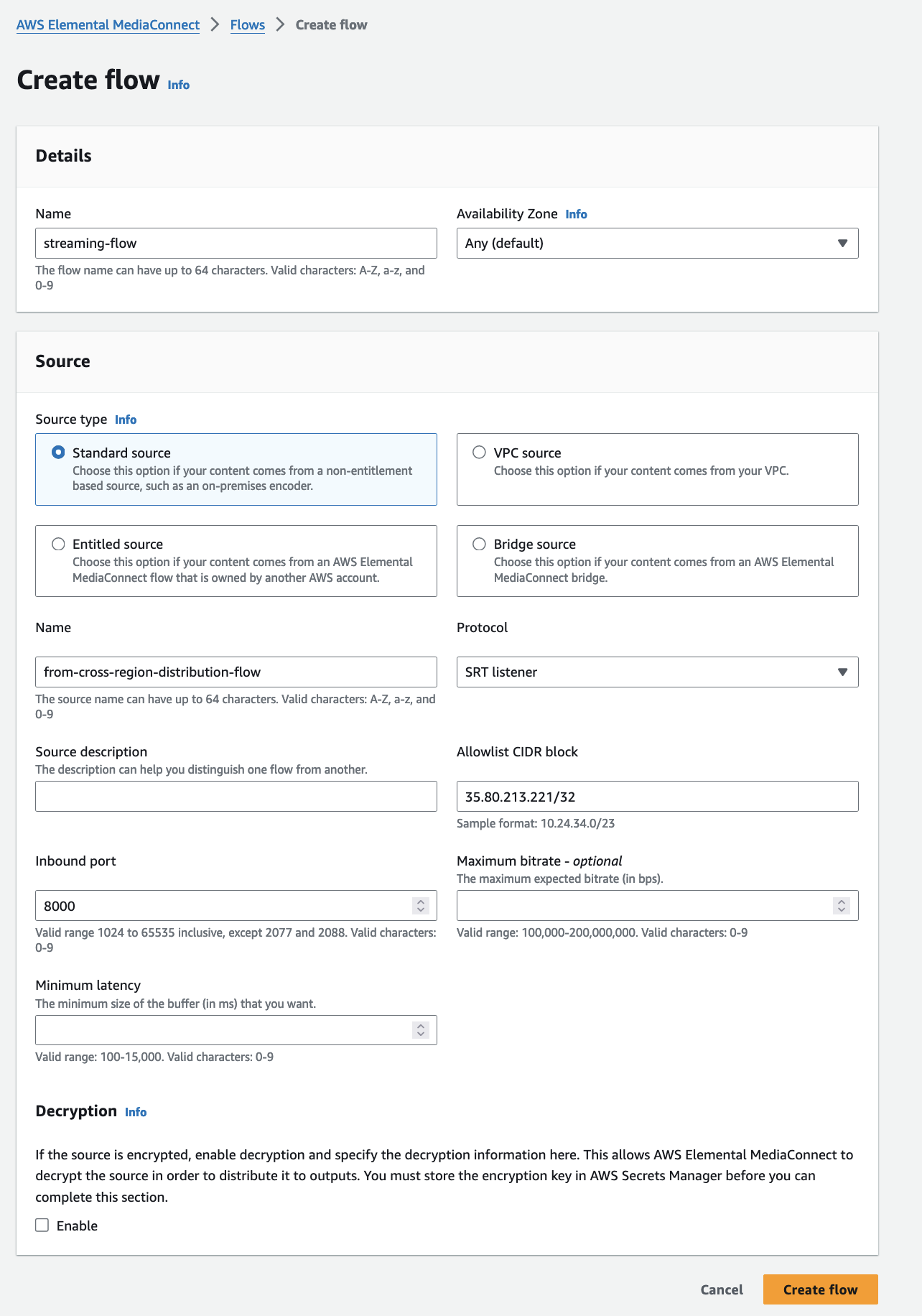
Follow the same steps to create a new MediaConnect flow, but this time, we will create a SRT Listener Source, and use the first MediaConnect CIDR as the Allowlist CIDR block. Start by clicking the Create flow button.
-
Name the flow as
streaming-flow. Then choose “SRT Listener” as the Protocol. Give it a Source name, for examplefrom-cross-region-distribution-flow. Use the distribution MediaConnect in us-west-2 (Oregon) input/output IP address, as the CIDR range for the Allowlist CIDR block. We will use8000as the Inbound port. All other settings should be left as the default. Click Create Flow. Then, start the Flow by clicking the Start button.
- Take note of the Inbound IP address of this newly created MediaConnect Flow.

-
Start the Flow.
-
Again, take note of the Inbound IP address of this newly created MediaConnect Flow.
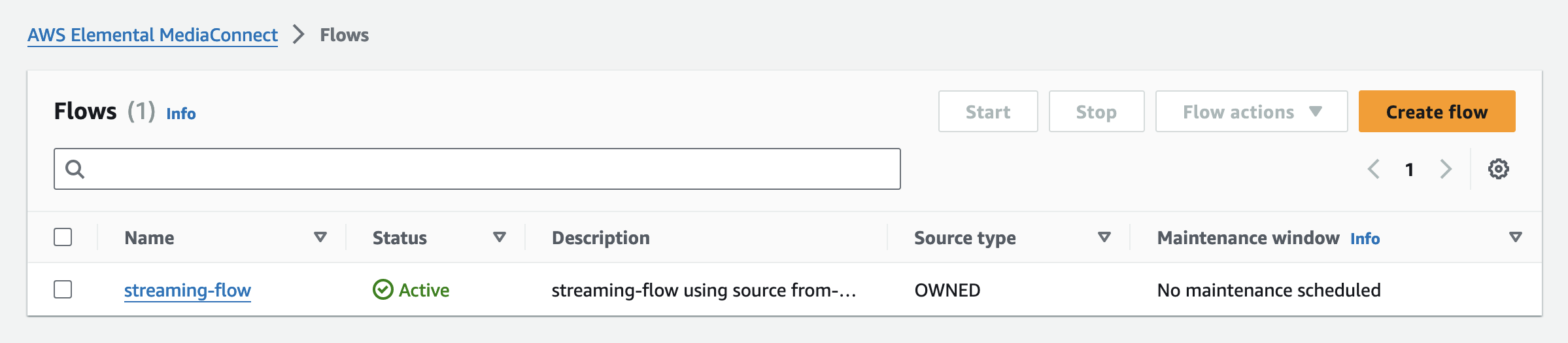
You should now have 1 running flow in US-EAST-1.
- Now, in the next section we will go back to the us-west-2 (Oregon) Region, and add a output to the MediaConnect flow distribution-flow to deliver to this newly created MediaConnect in us-east-1 (N. Virginia) region.