Step 6: Starting MediaLive and MediaConnect Contribution Feeds
-
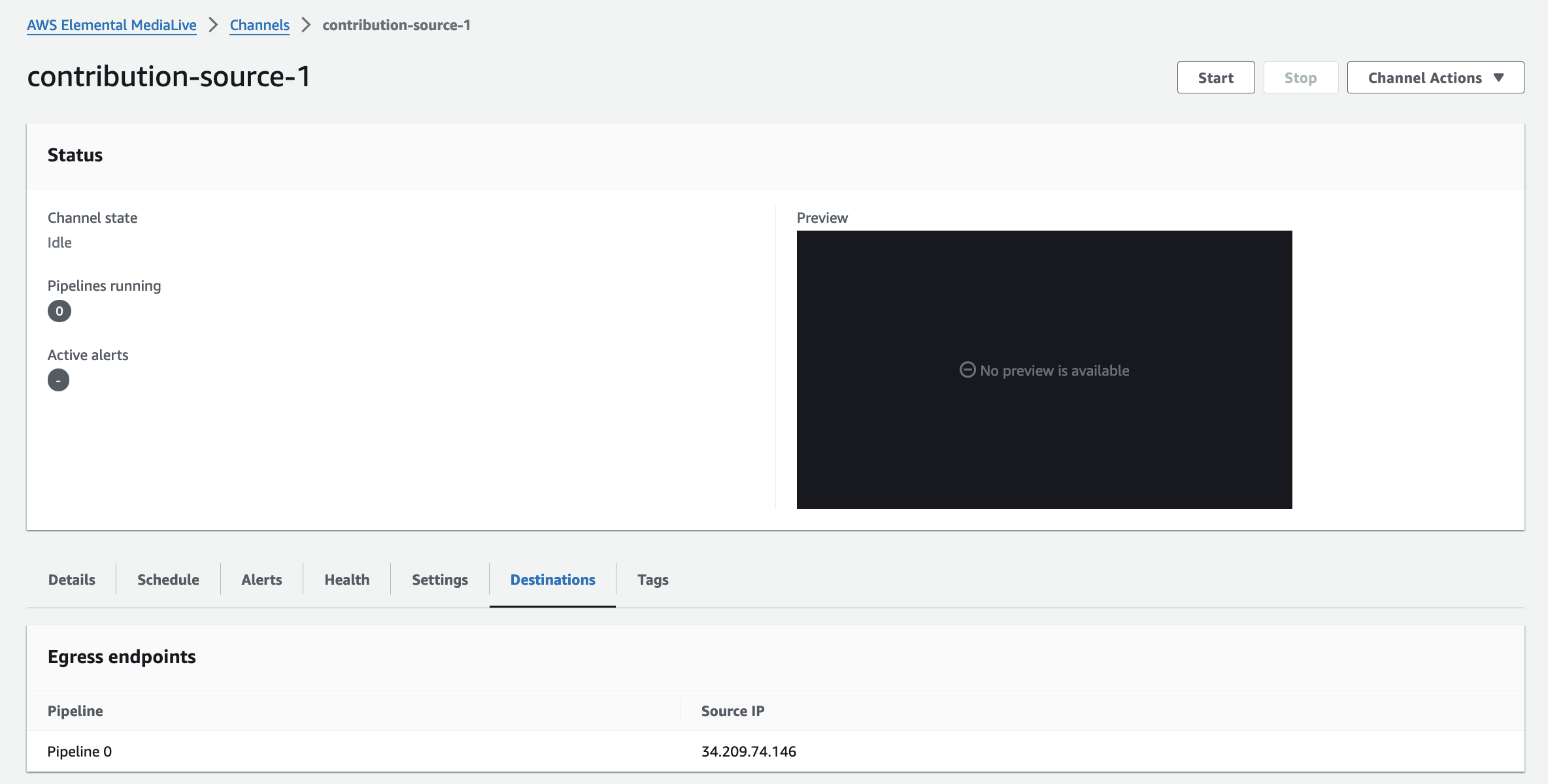
Before proceeding, let’s increase the security of our contribution MediaConnect flows by restricing its source CIDR range to the newly created MediaLive channels. With the channel created, go to the Destinations tab below the Preview window, and take note of the Source IP in the Egress endpoints section.
-
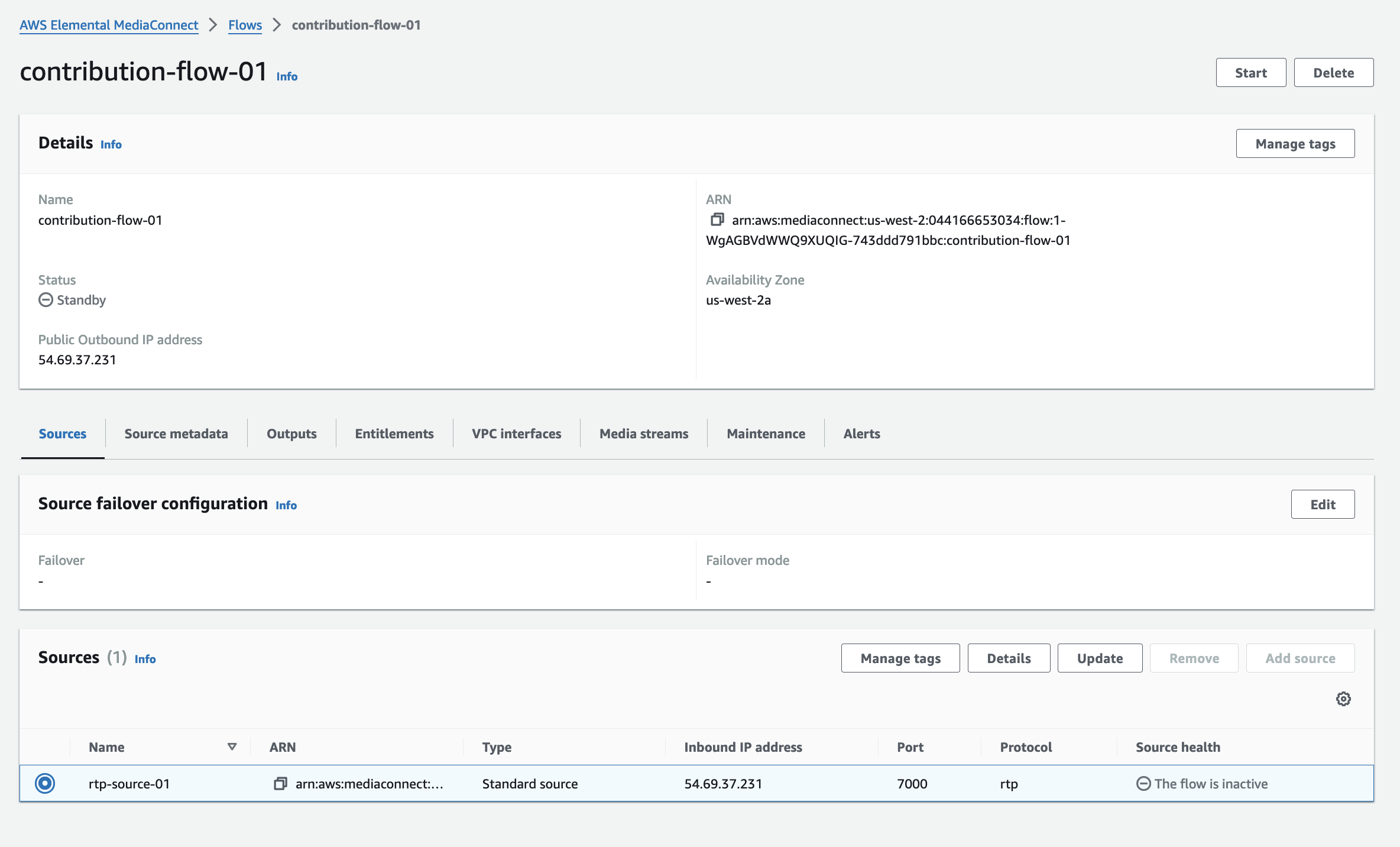
Go back to your MediaConnect console in another browser Tab and click on your contribution-flow-01, in the Sources section select the “rtp-source-01” source radial button and click the Update button.
-
Edit the Allowlist CIDR block from 0.0.0.0/0 to
<IP of MediaLive>/32. Then, click Update Source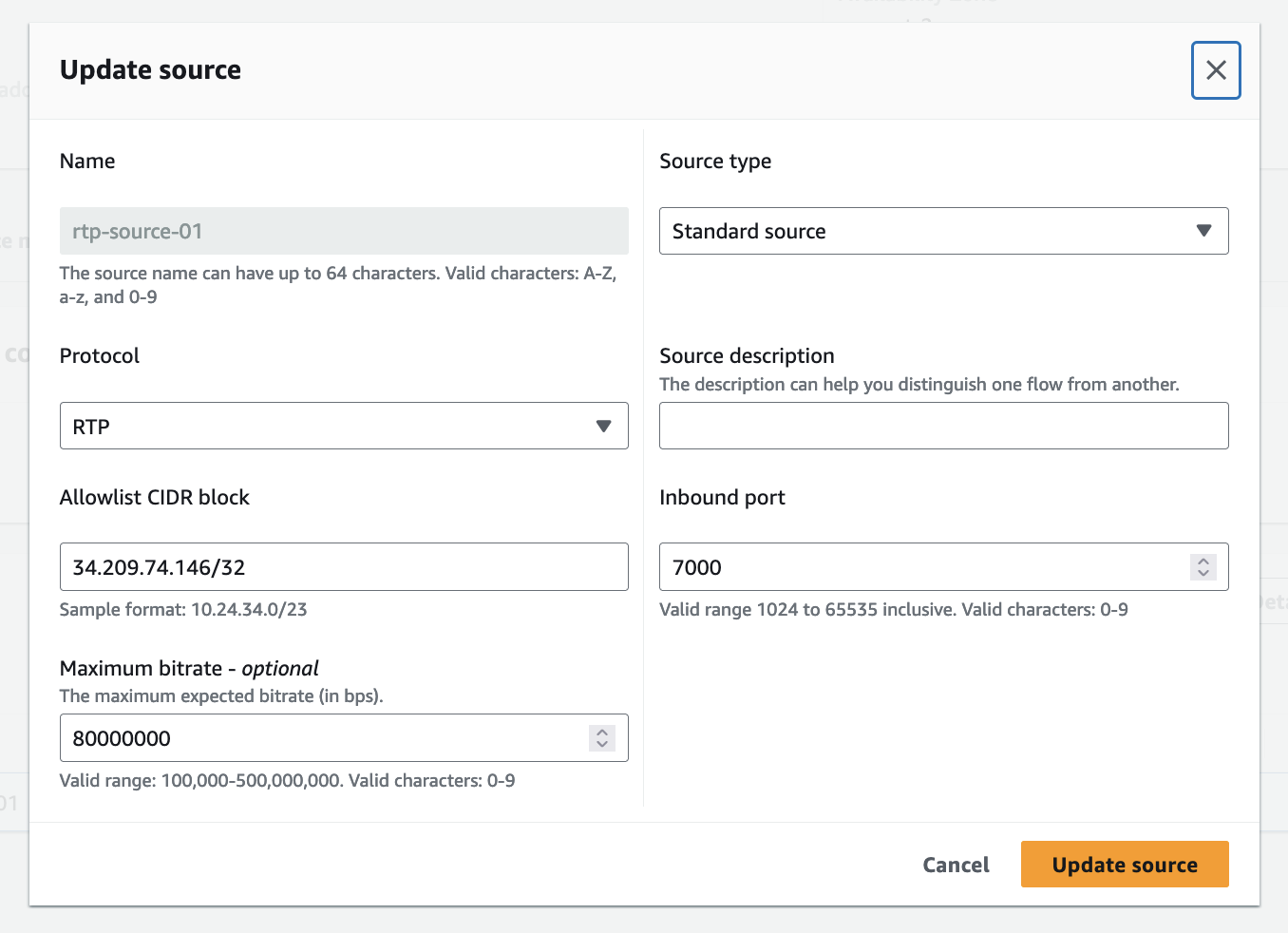 .
. -
Start the MediaConnect Flow by clicking on the Start Button at the top right of the MediaConnect flow configuration panel. You will also need to go to the MediaLive console, and start the channel by clicking Start.
-
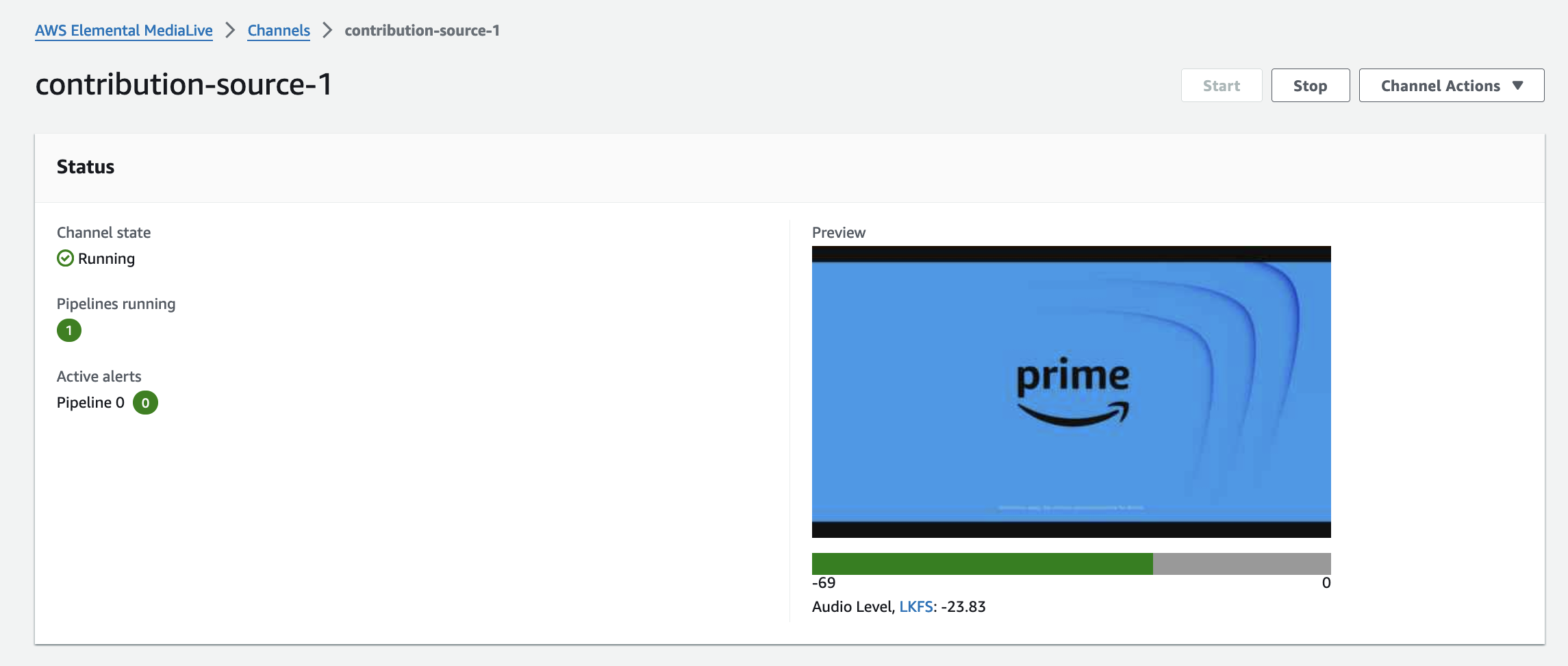
It will take a minute or two for both Flow and Channel to start. After you see both states as Running, check the Source heath metric on MediaConnect to see your feed coming thru.
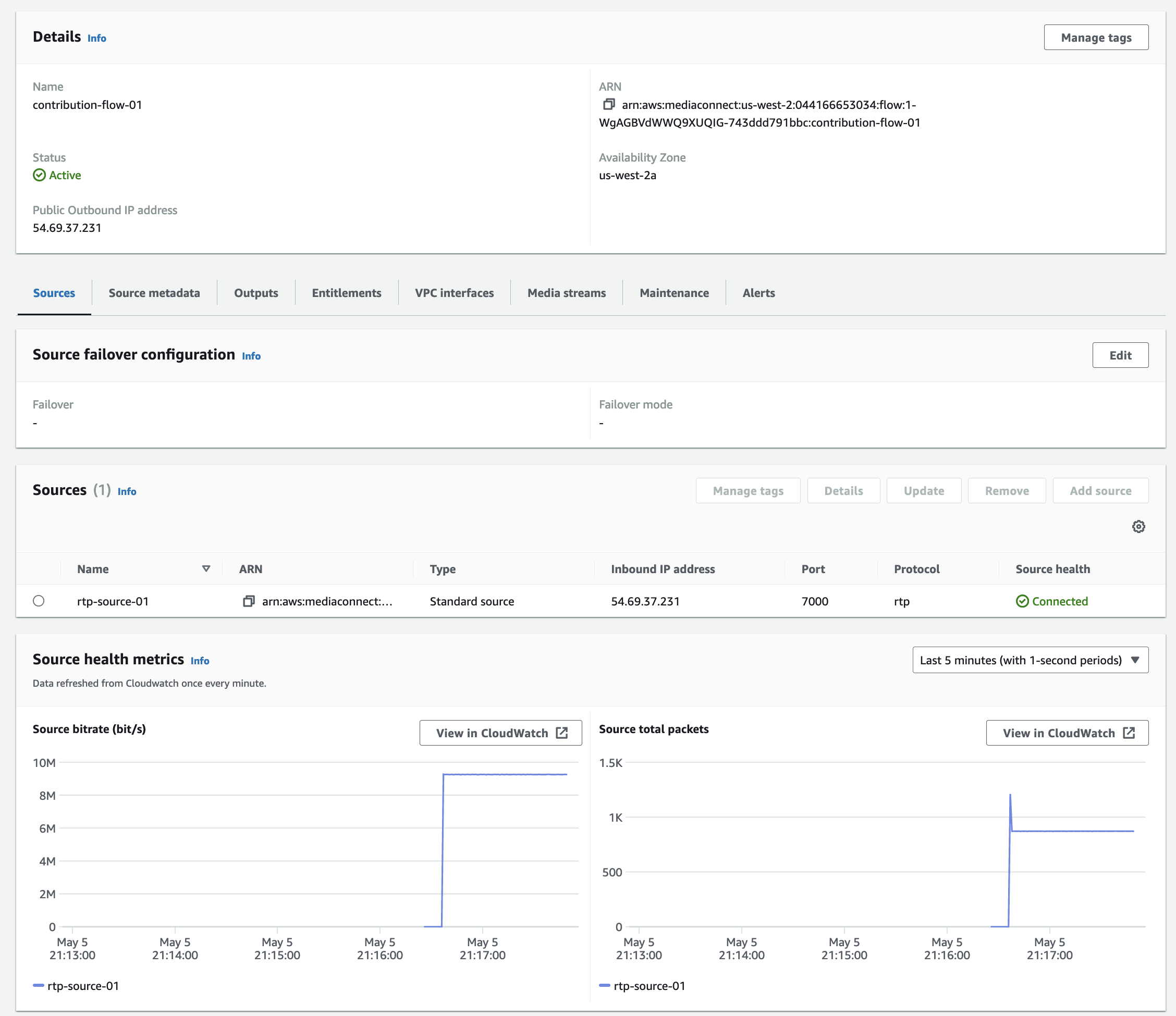
You should also have the thumbnails of the MediaLive input in the Console.
-
Repeat steps 1-6 for the second contribution source (MediaConnect and MediaLive).