Step 1: Creating Switcher EC2 Instance
Let’s start creating an EC2 instance that will serve as our switcher. It will need to receive contribution SRT flows from MediaConnect and send out a program SRT flow back to MediaConnect.
In order to minimize cross-AZ traffic, we will choose the same AZ for our signal path. In this workshop we will choose us-west-2a.
-
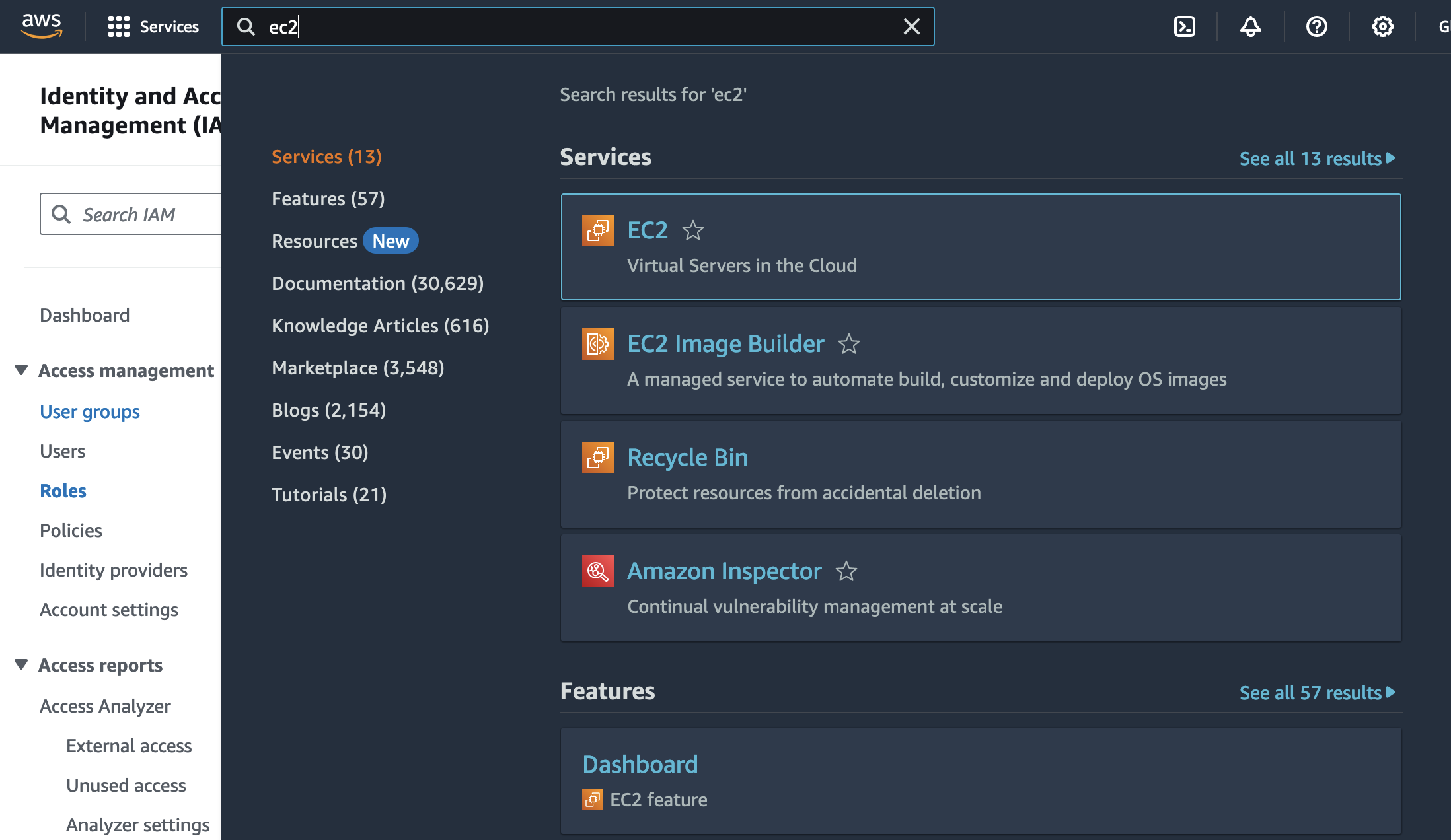
In the search box, type EC2 and click on the EC2 icon to go to the Amazon EC2 service page.
-
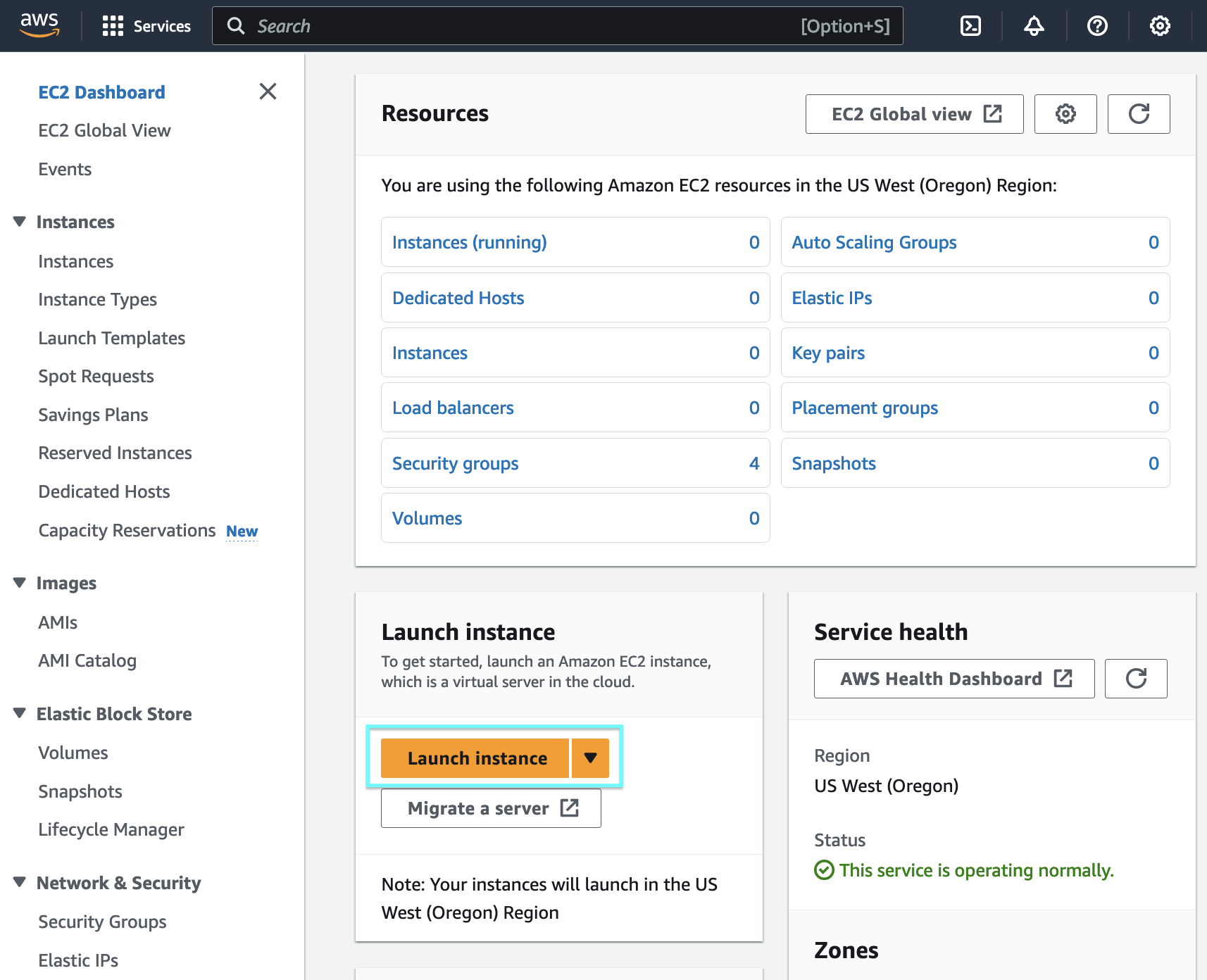
Click on Launch instance.
-
Configure your EC2 Instance using the following settings.
Under Name, type in
switcher-instance.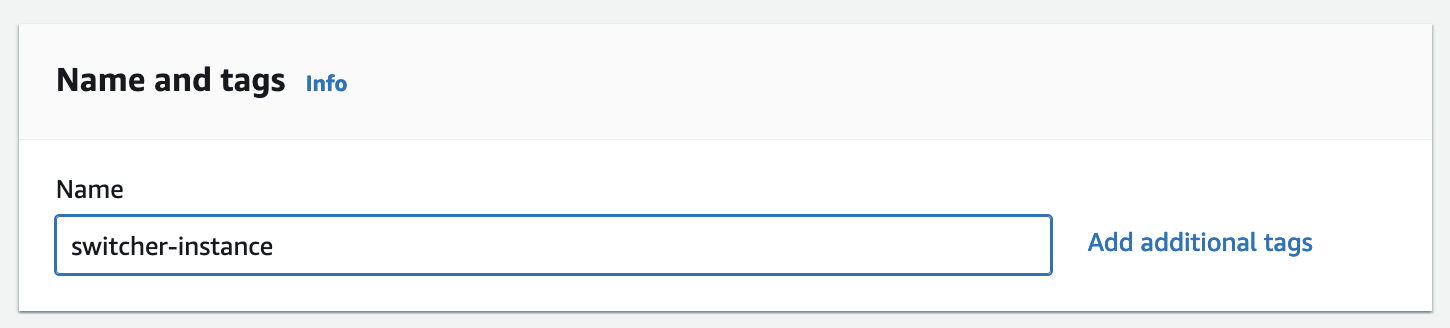
Under Application and OS Images (Amazon Machine Image), Click on My AMIs and select Shared with me. Click the AMI with the name
obs-switcher-2024-05-04.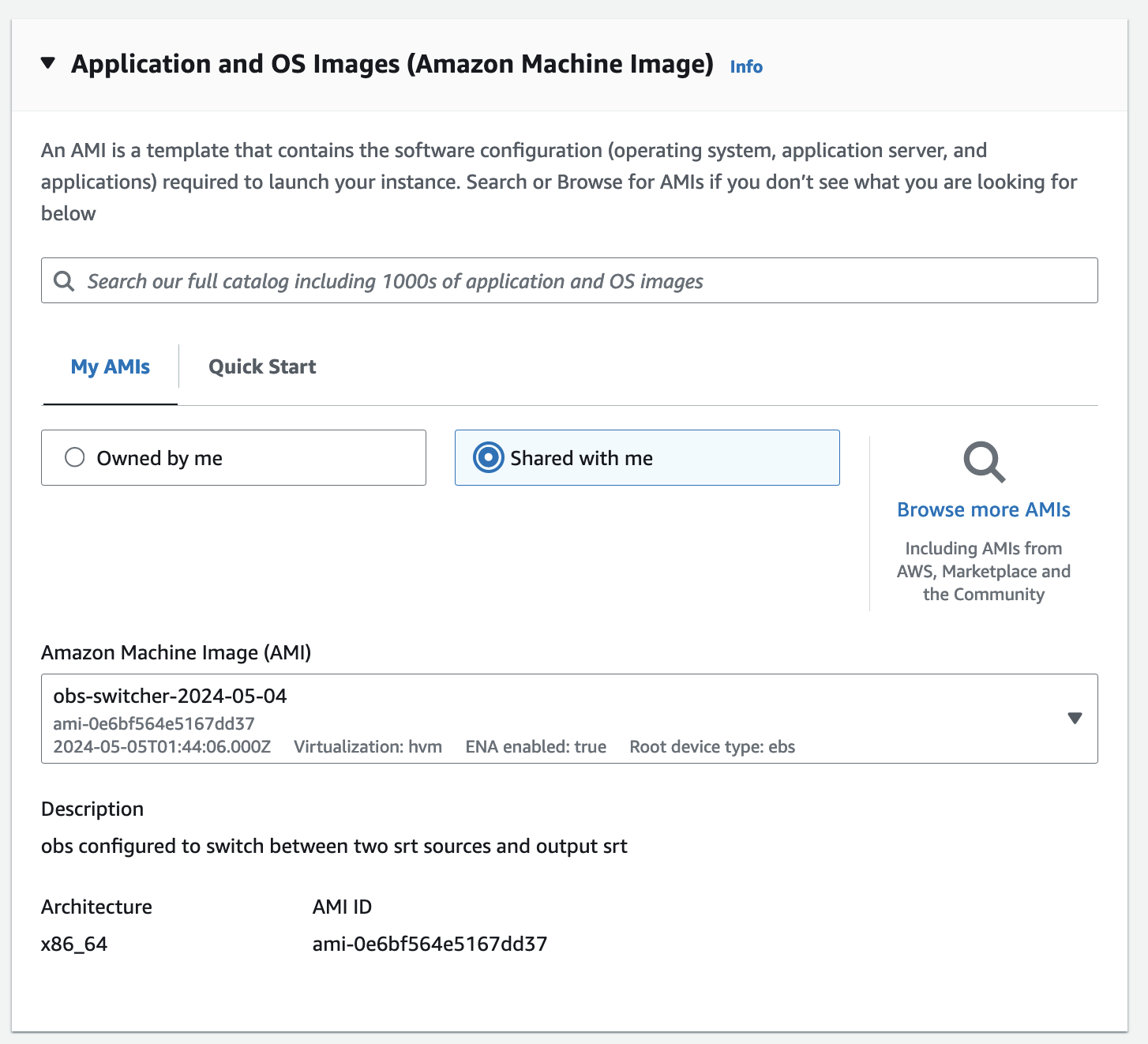
Under Instance type, select
c6a.4xlarge.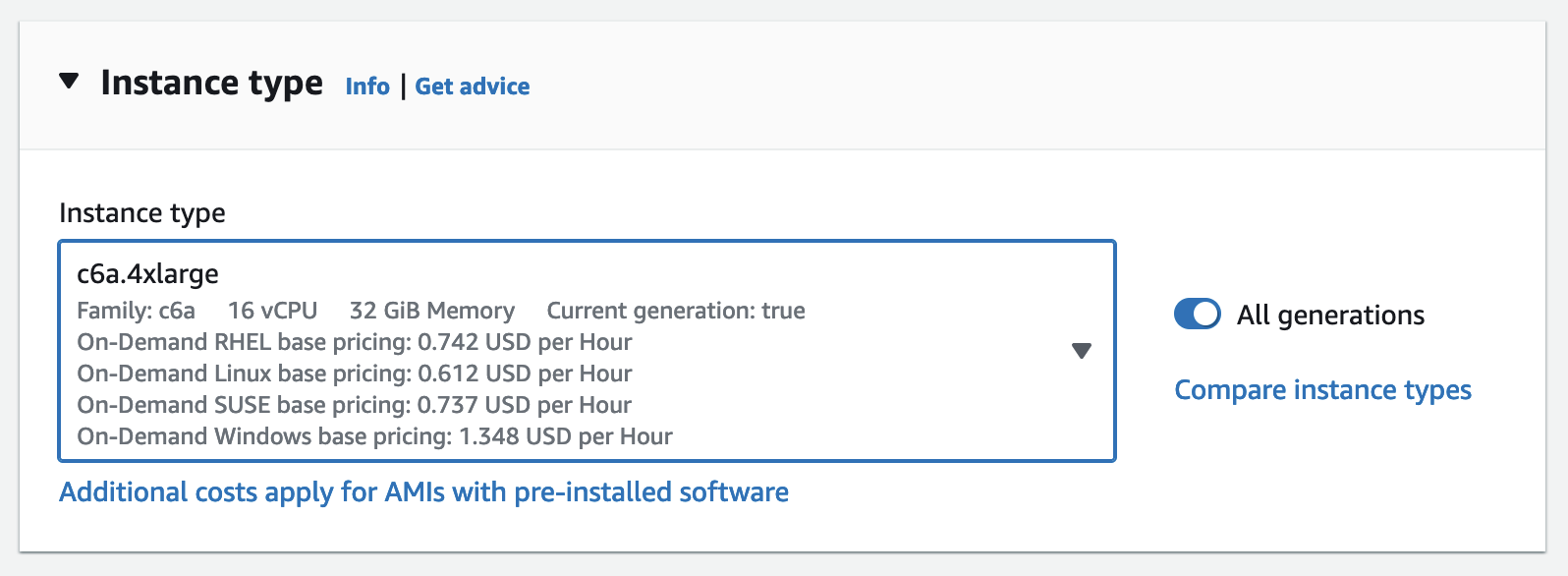
Under Key pair (login), select
Proceed without a key pair (Not recommended)as we will be using Systems Manager to interact with the instance.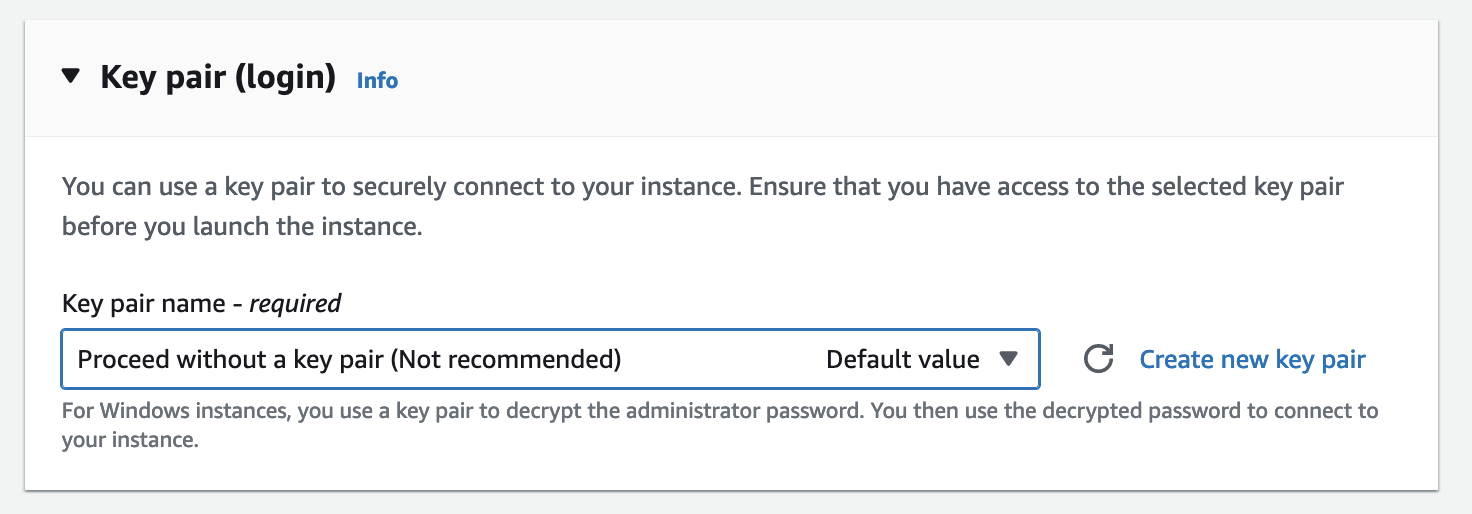
Under Network settings, click Edit to customize the default settings.

Under Subnet, select a subnet in
us-west-2a.Under Firewall (security groups), select the
switcher-security-groupwe created earlier.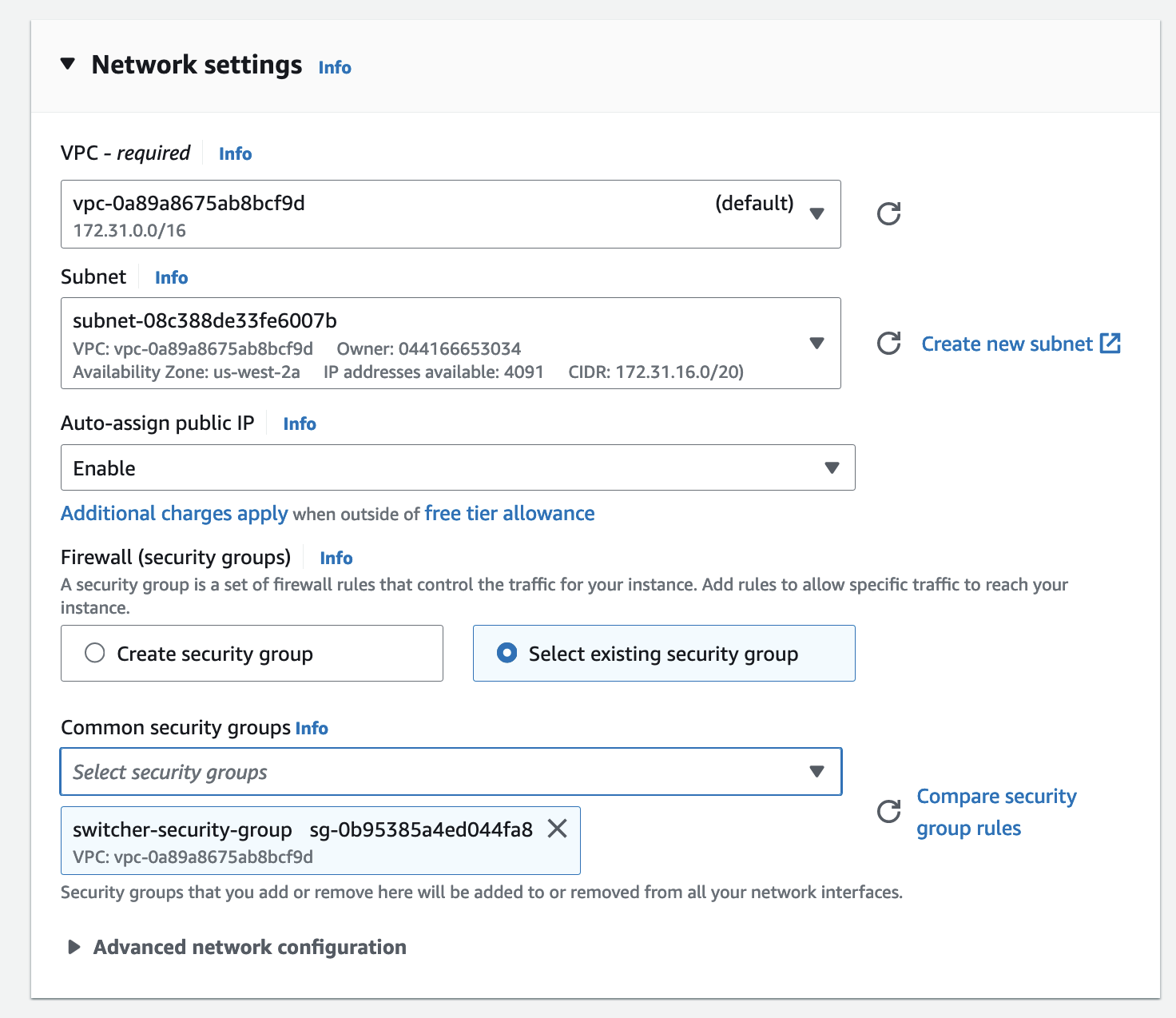
-
Click on Launch instance to create the instance.
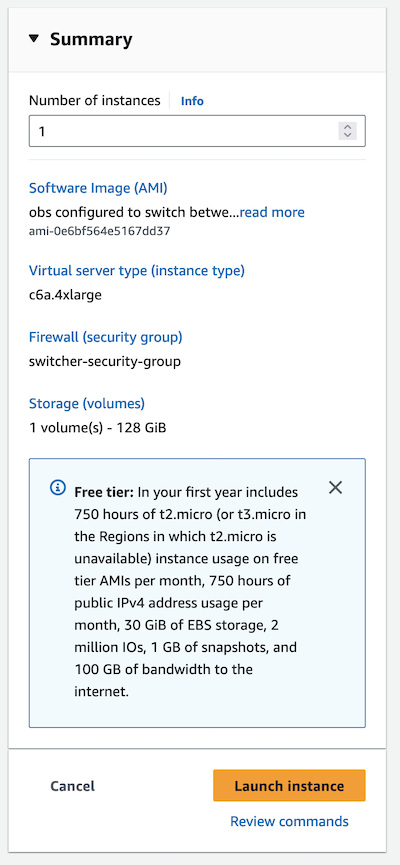
-
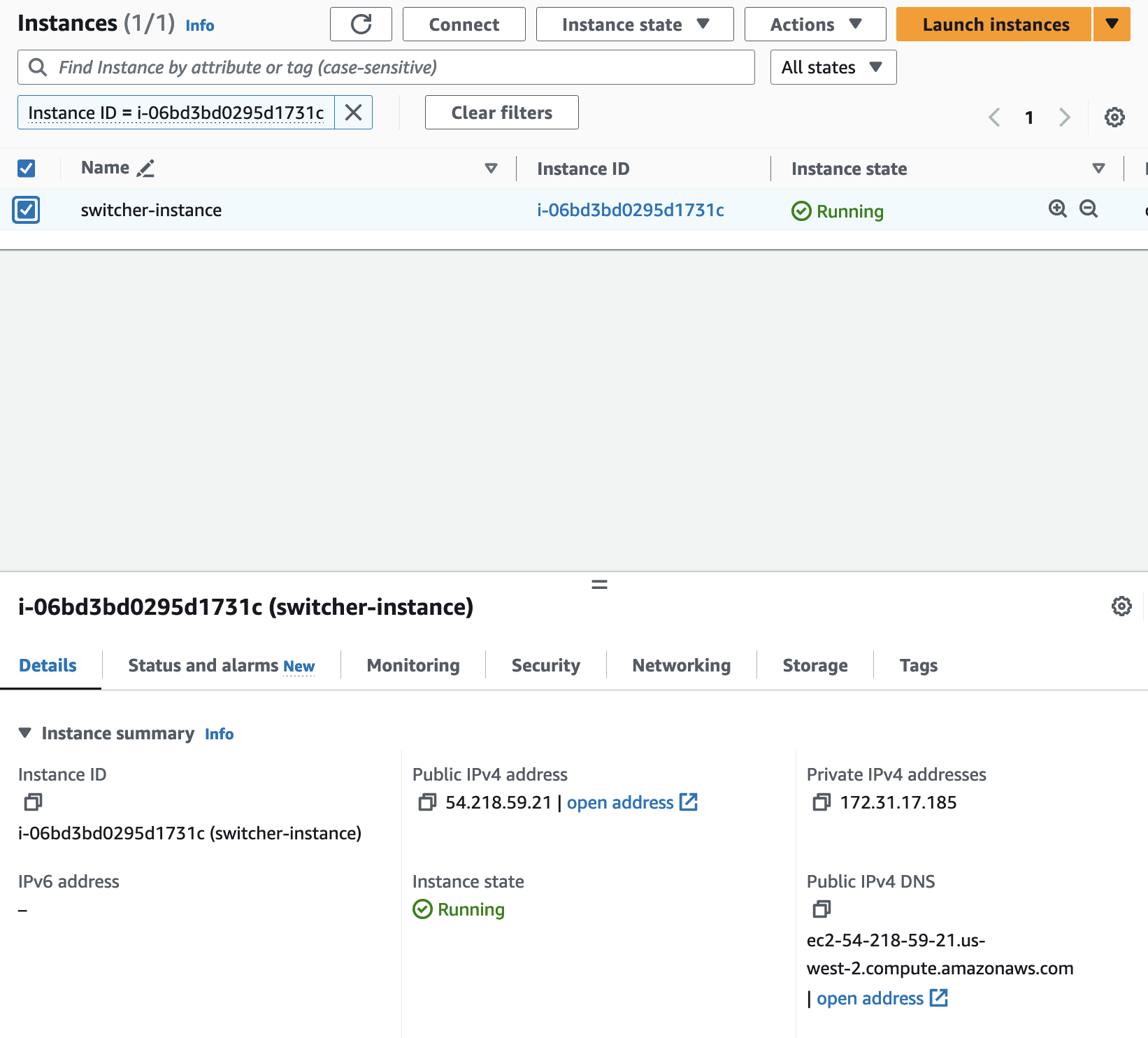
Click on the instance-id to go to be redirected to the soon to be running instance.

Make note of the Public IPv4 address and the Private IPv4 address.