Step 4: Setting Up IAM Role for EC2
Before starting the labs, we need to create an IAM Role for our switcher EC2 instance so it can access files in S3 and integrate with Systems Manager.
-
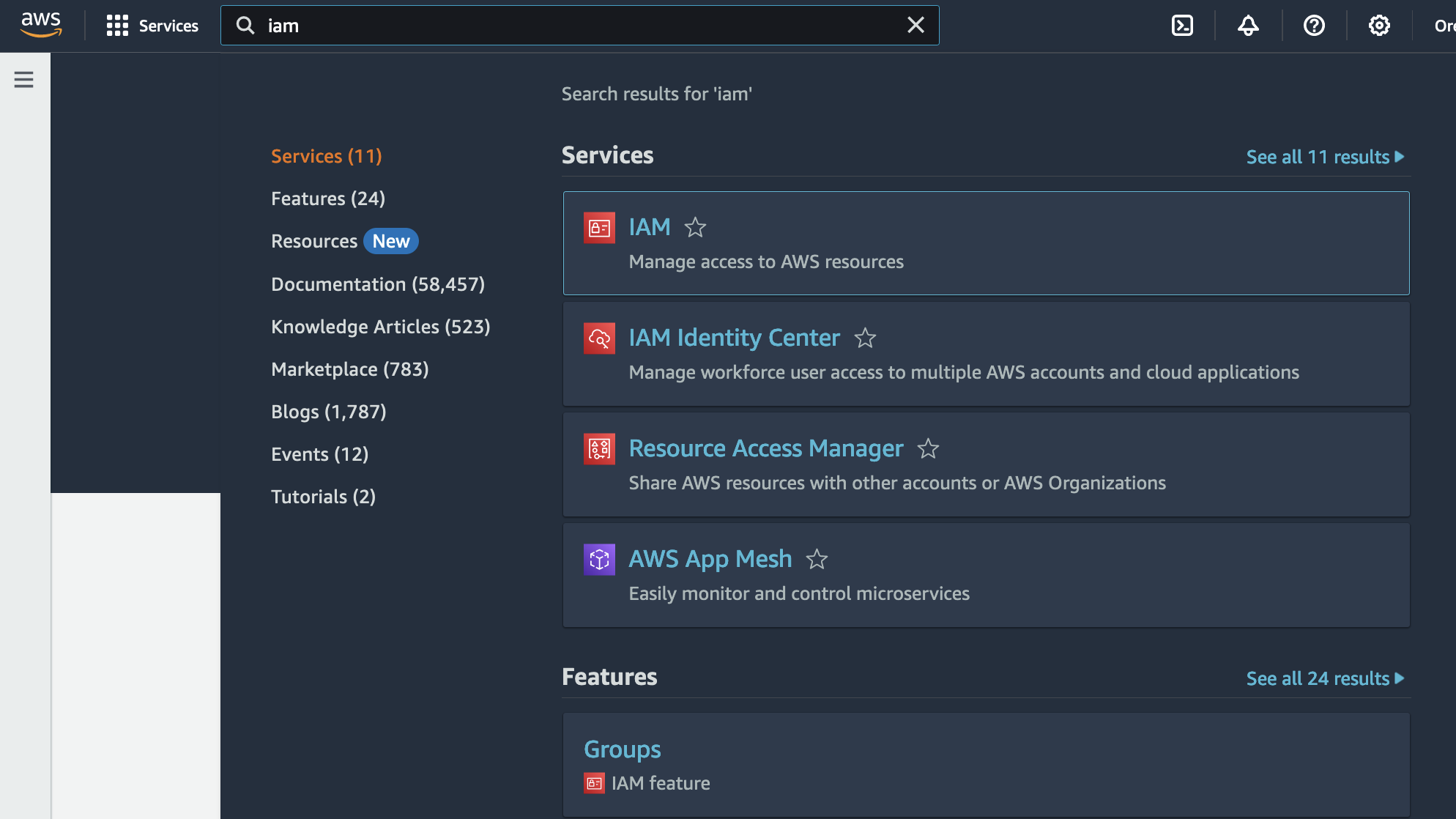
In the search box, type IAM.
-
Click the IAM icon to go to the AWS IAM service page.
IAM Policy
-
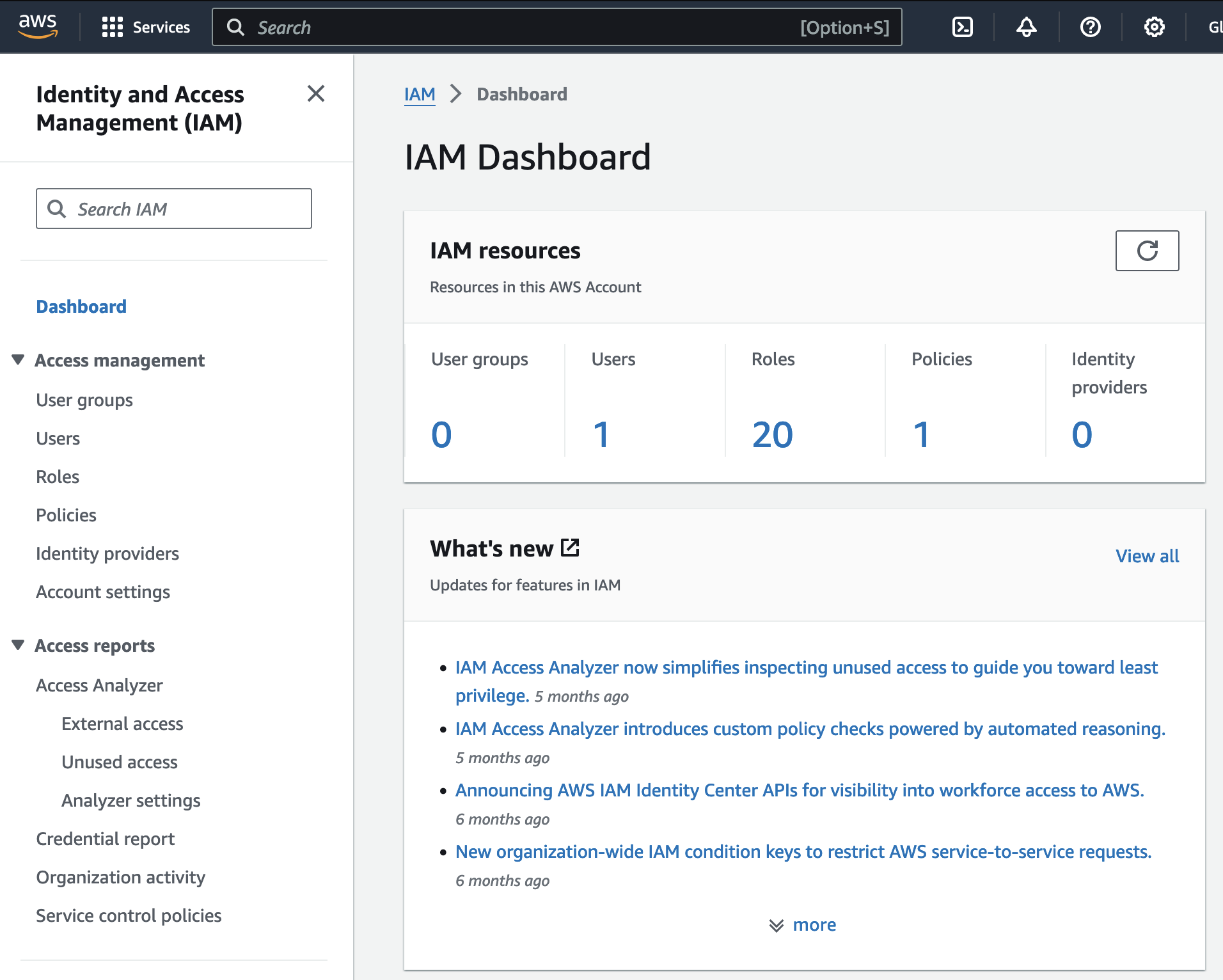
Click on Policy on the sidebar or on the main page.
-
Click on Create policy on the top right.

-
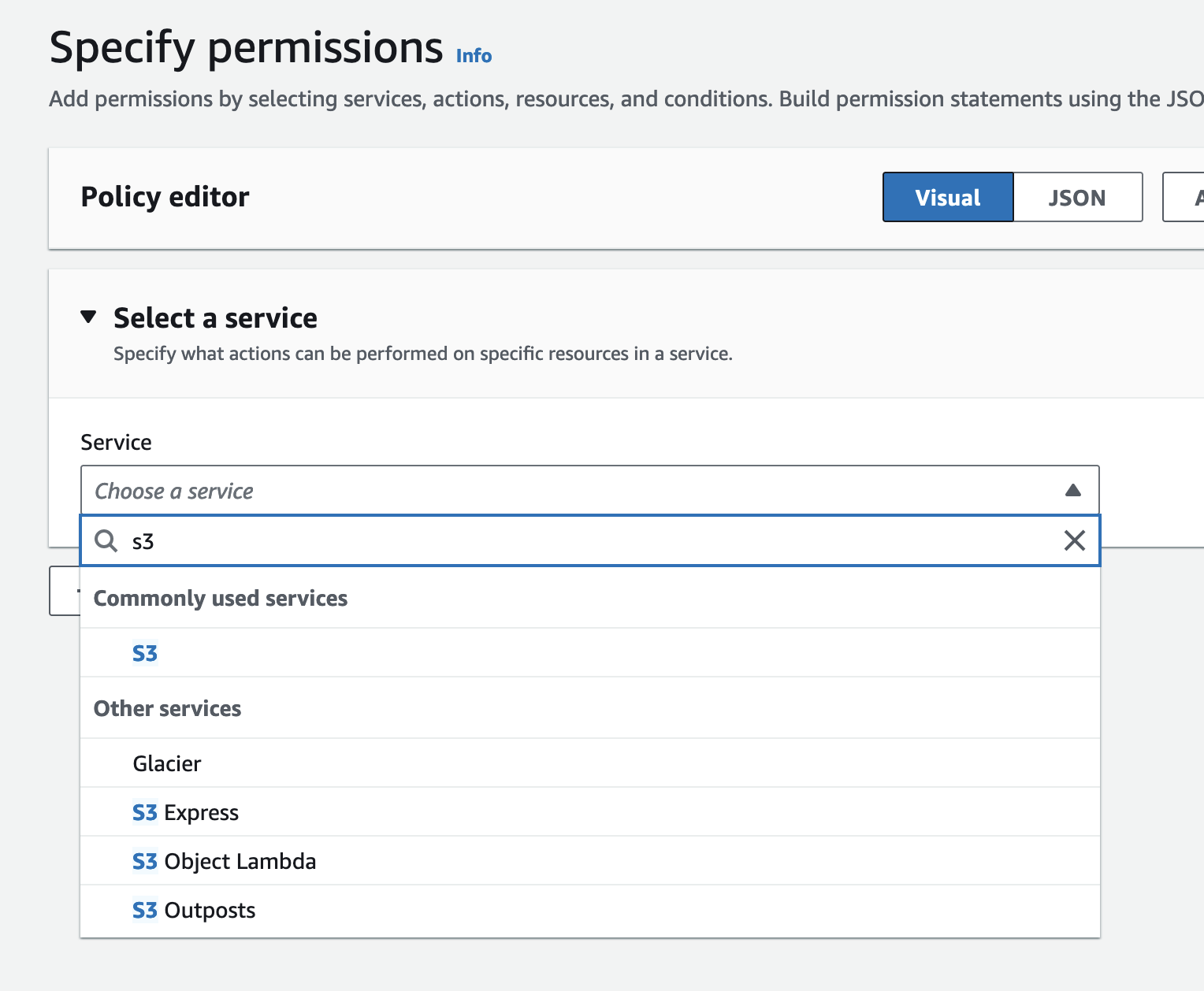
Select S3 from the Service drop down menu.
-
Under Actions, expand Read and select All read actions. Expand Write and select All write actions.
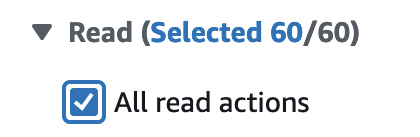
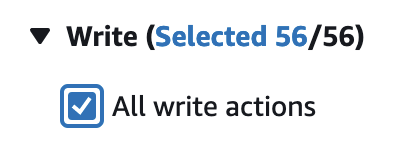
Access level should look like this.
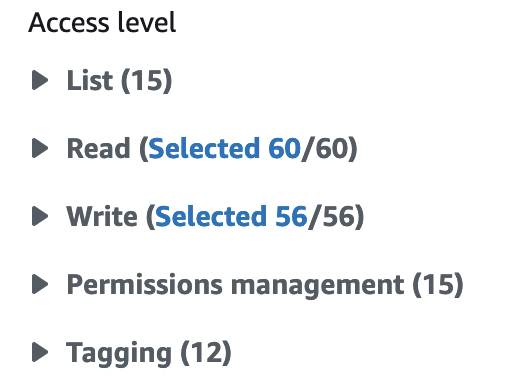
-
Under Resources, scroll down to object and click Add ARNs to restrict access..

Under Resource bucket name, type in the source bucket created earlier and check the box for Any object name. Then click Add ARNs.
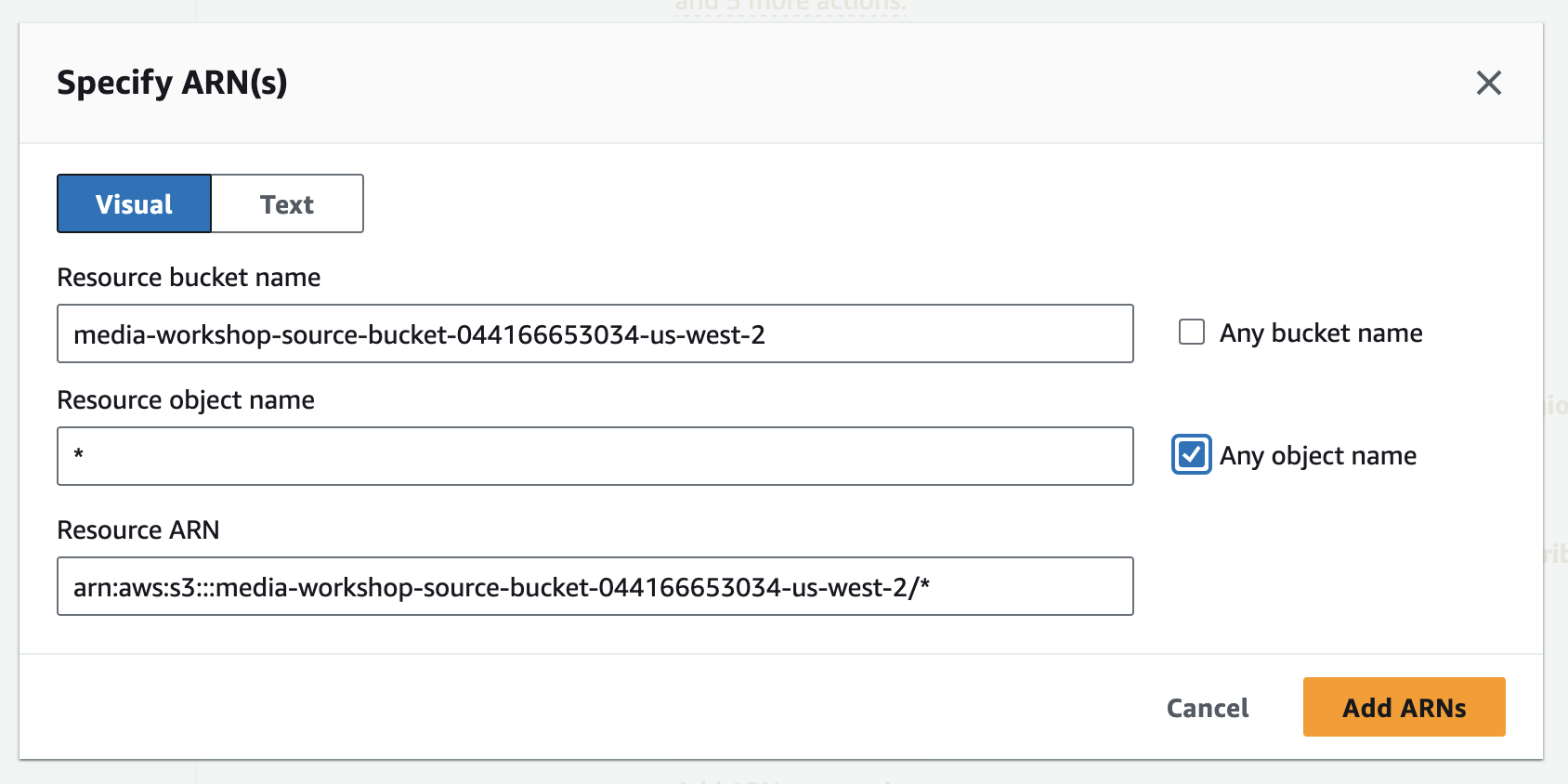
Click Add ARNs to restrict access. again and repeat for the output bucket created earlier then click Add ARNs.
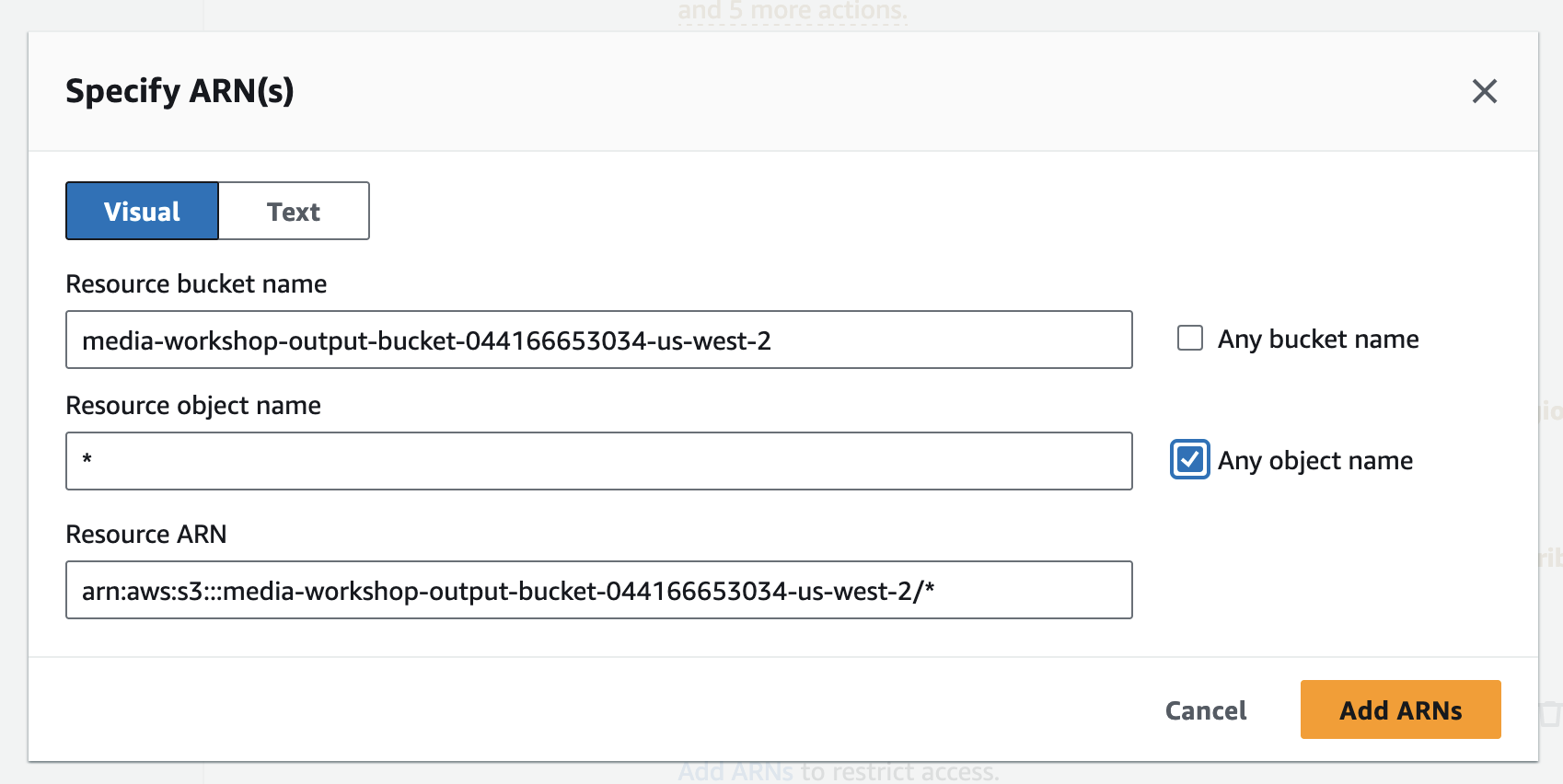
The objects section should now look like this.

-
Scroll down and click Next.

-
Under Policy name, type in
media-workshop-s3-access-policy.Under Description, type in
this policy allows read and write access to objects in the media-workshop s3 buckets.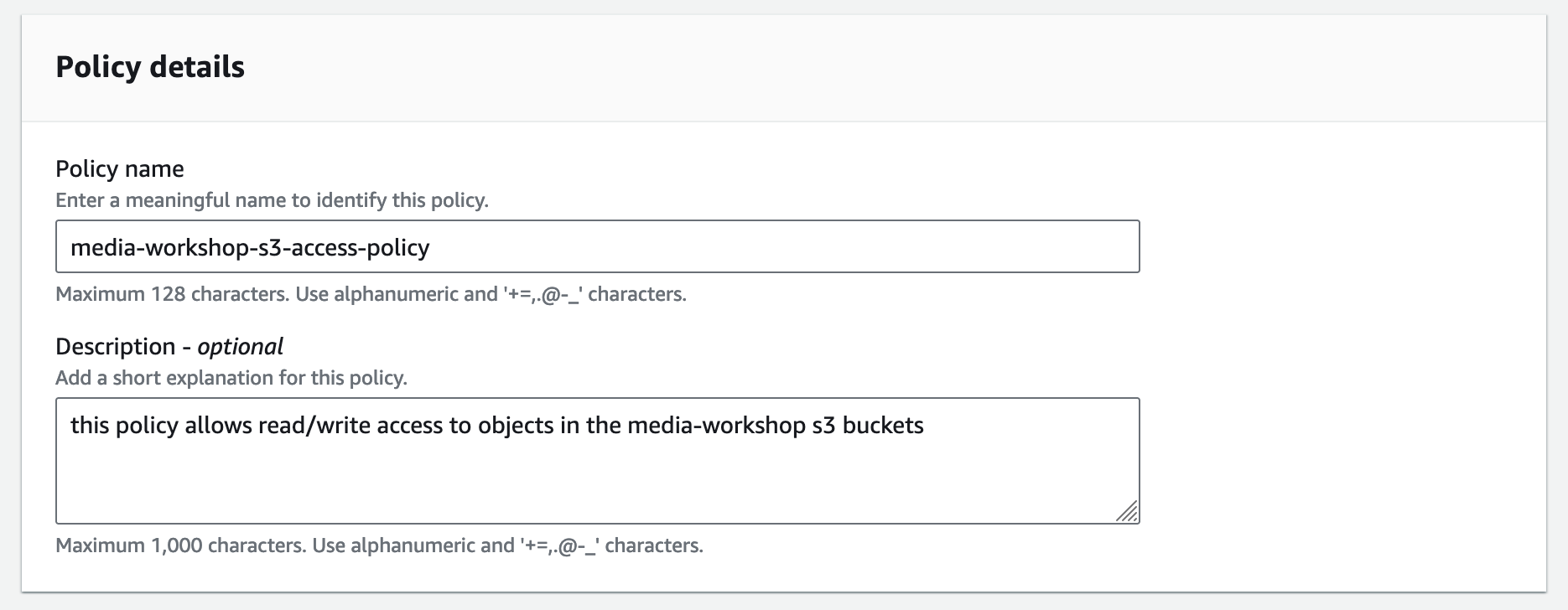
-
Click Create policy at the bottom of the page.
IAM Role
-
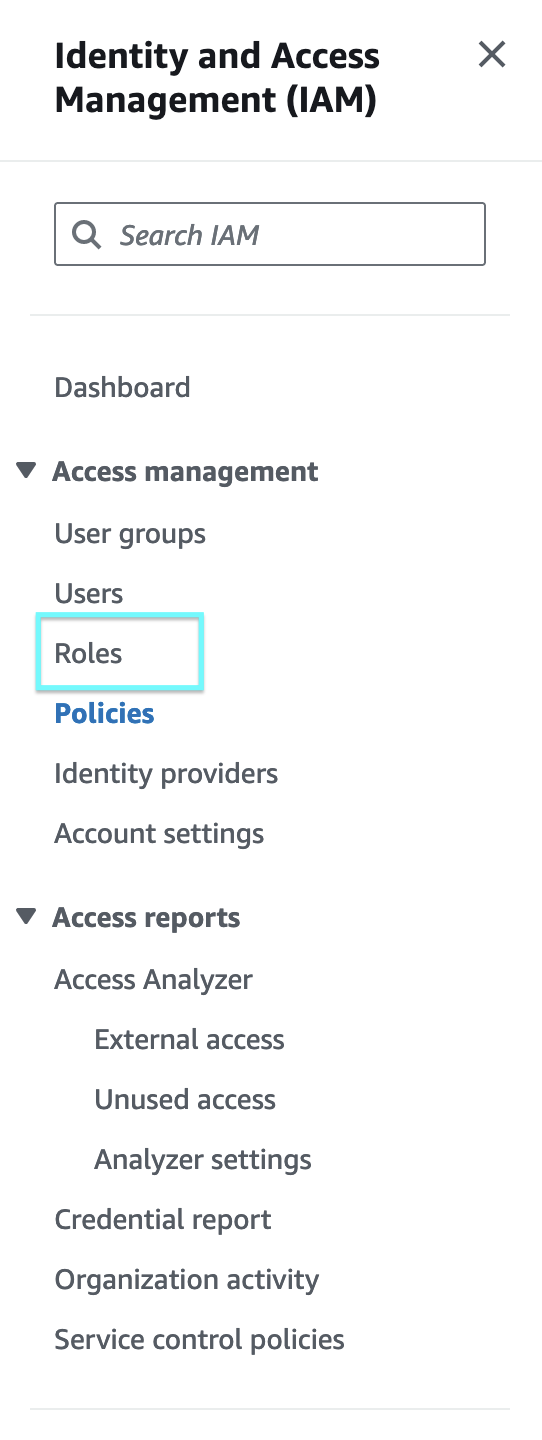
Click on Roles on the sidebar or on the main page.
-
Click on Create role on the top right.

-
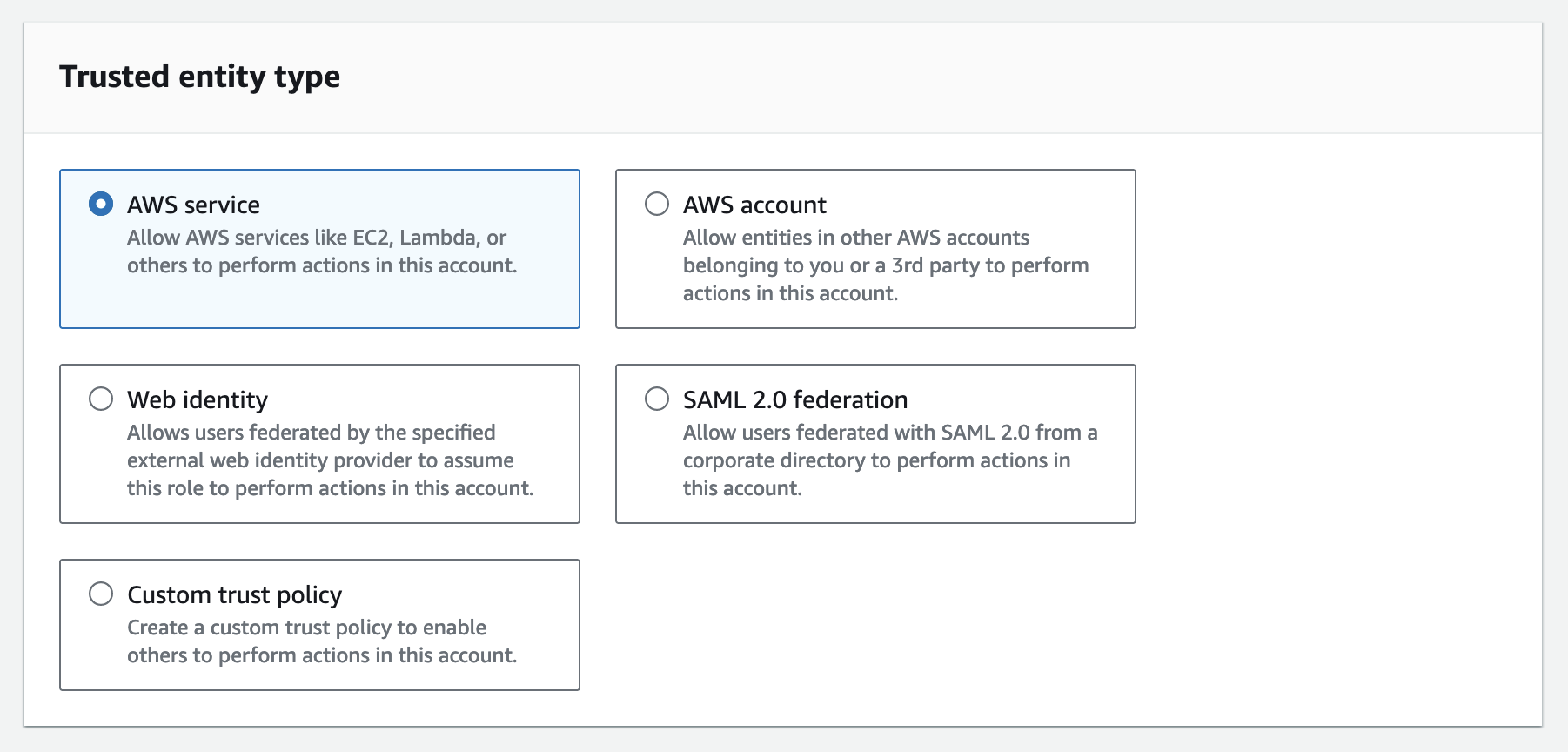
Choosse AWS service for Trusted entity type.
-
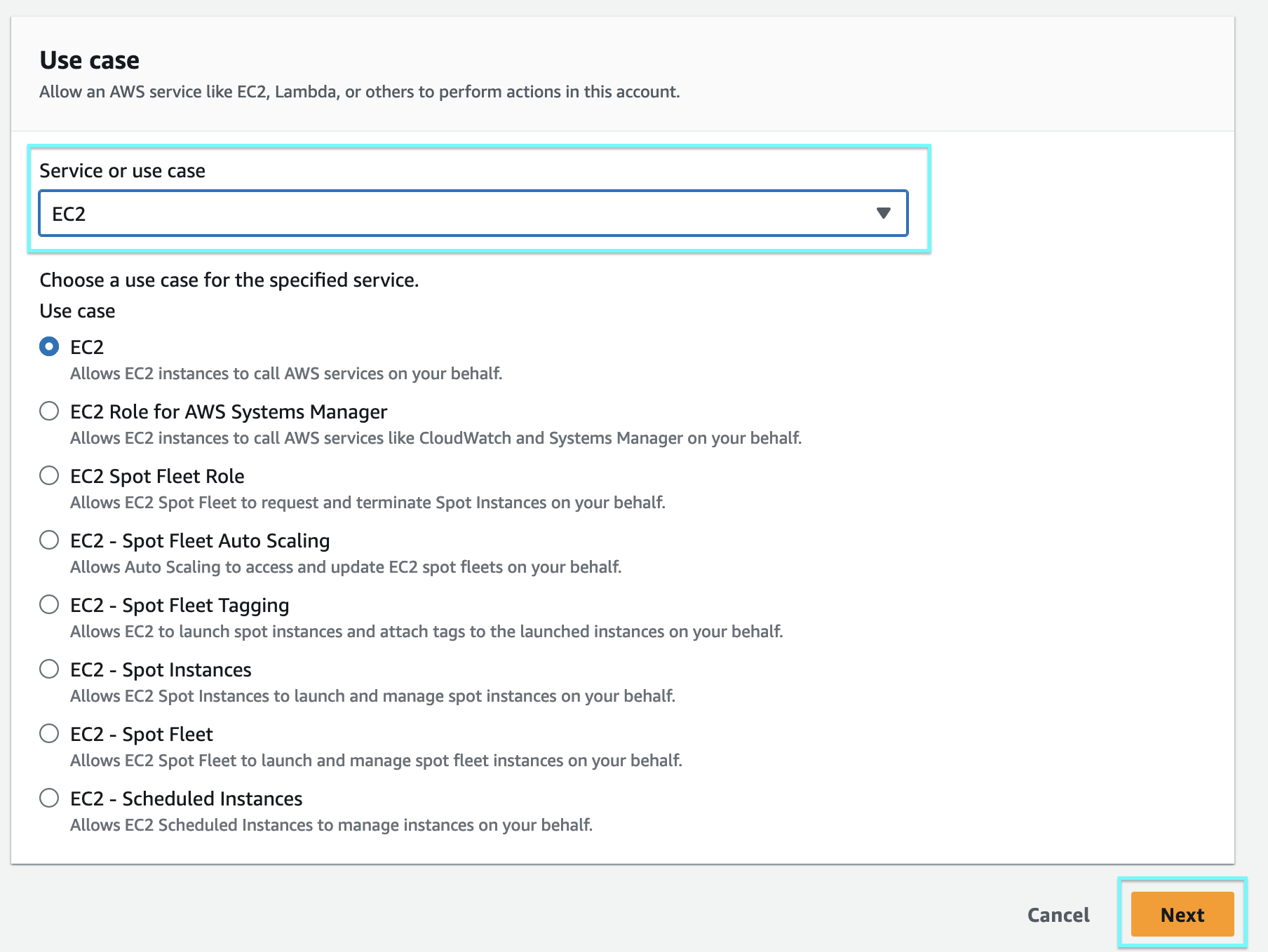
Choose EC2 for Service or use case and select Next
-
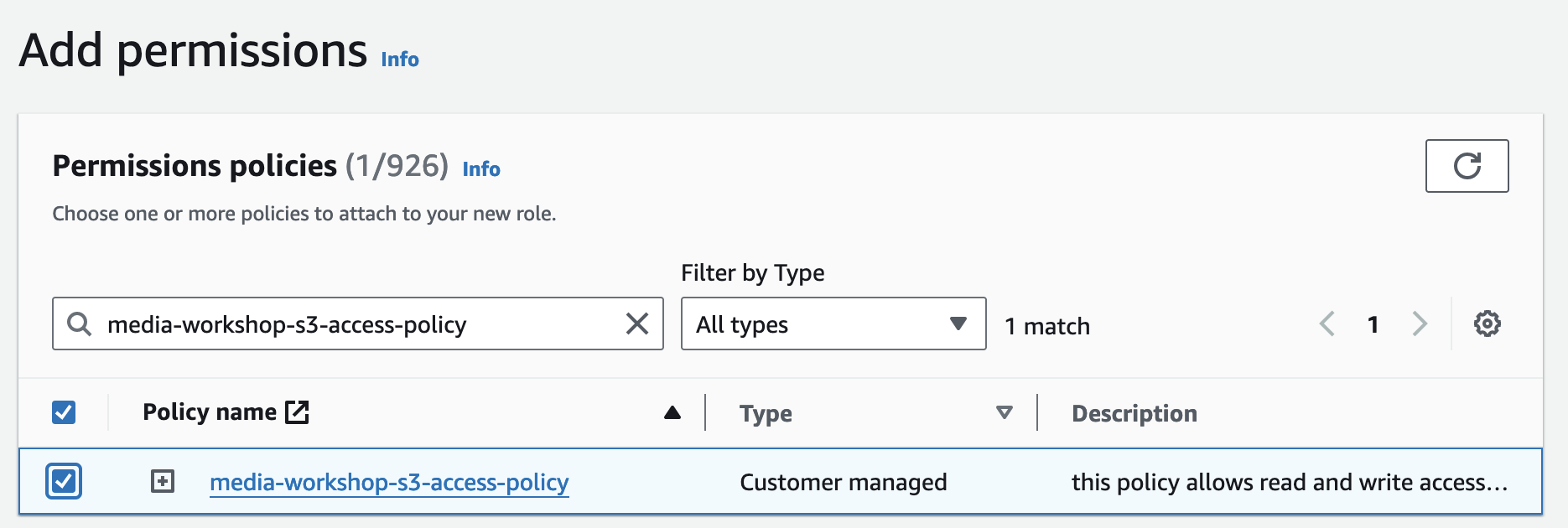
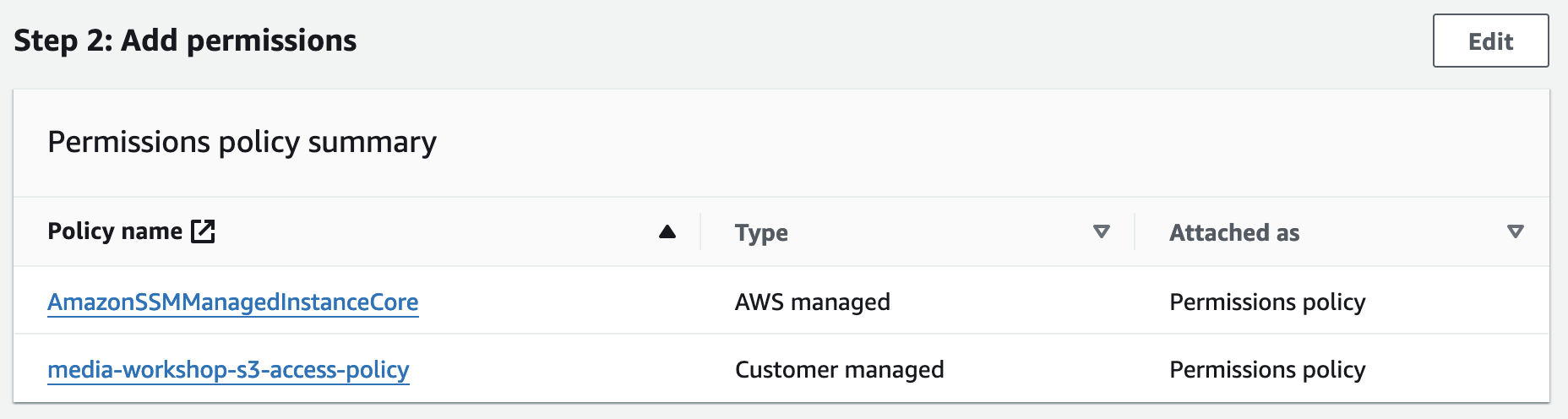
Type media-workshop-s3-access-policy to search for the customer managed policy we created earlier and check the box.
-
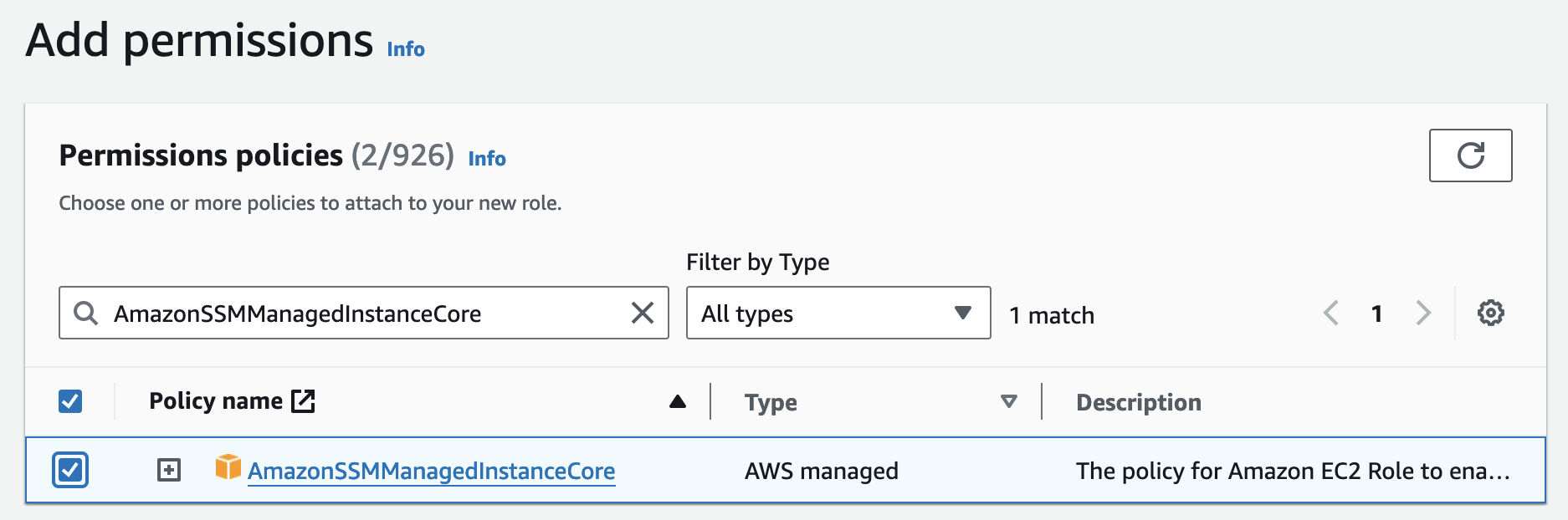
Type AmazonSSMManagedInstanceCore to search for the AWS managed policy that allows for integration with AWS Systems Manager and check the box.
-
Scroll down and click Next to advance to the next page.

-
Under Role name, type in
media-workshop-instance-roleand validate the permissions listed.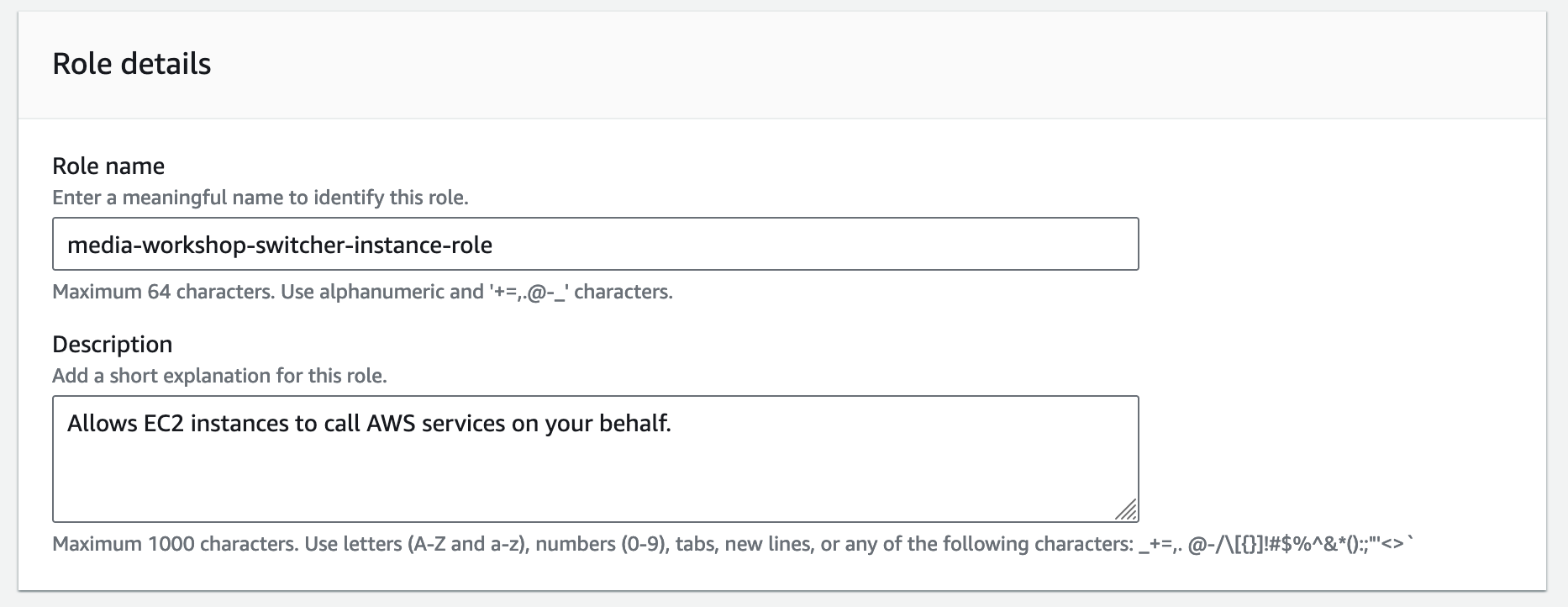
-
Click Create role to create the role.