Step 3: Connecting to Switcher Web Interface
Our switcher EC2 instance is configured with OBS. We will use a web interface to control OBS via a webscocket connection.
-
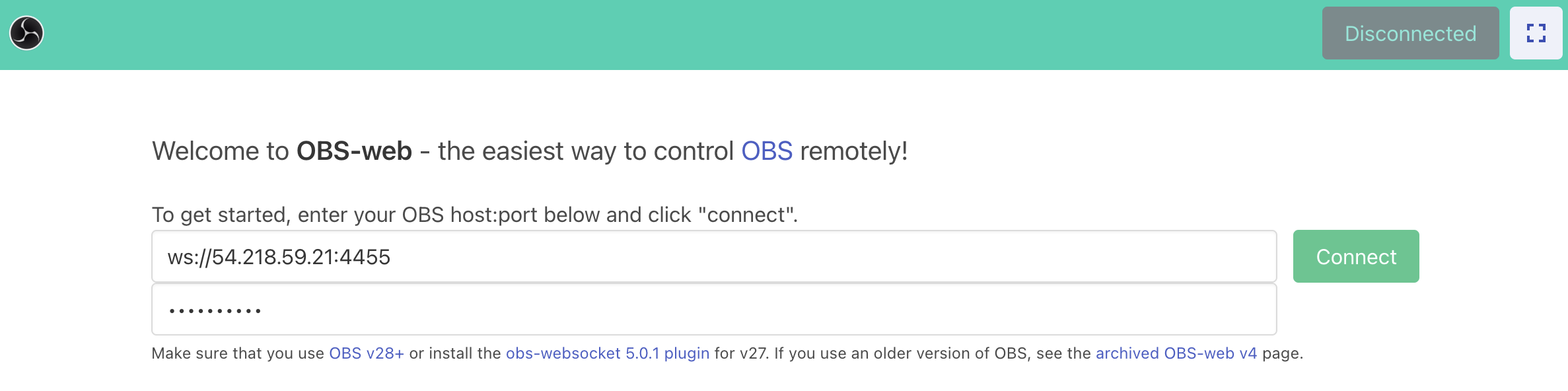
Connect to Switcher Web Control
Enter the following connection string.
ws://{switcher-public-ip-address}:4455whereswitcher-public-ip-addressis the Public IP address of your switcher EC2 Instance.Enter
OnlySecretas the password.Click Connect
-
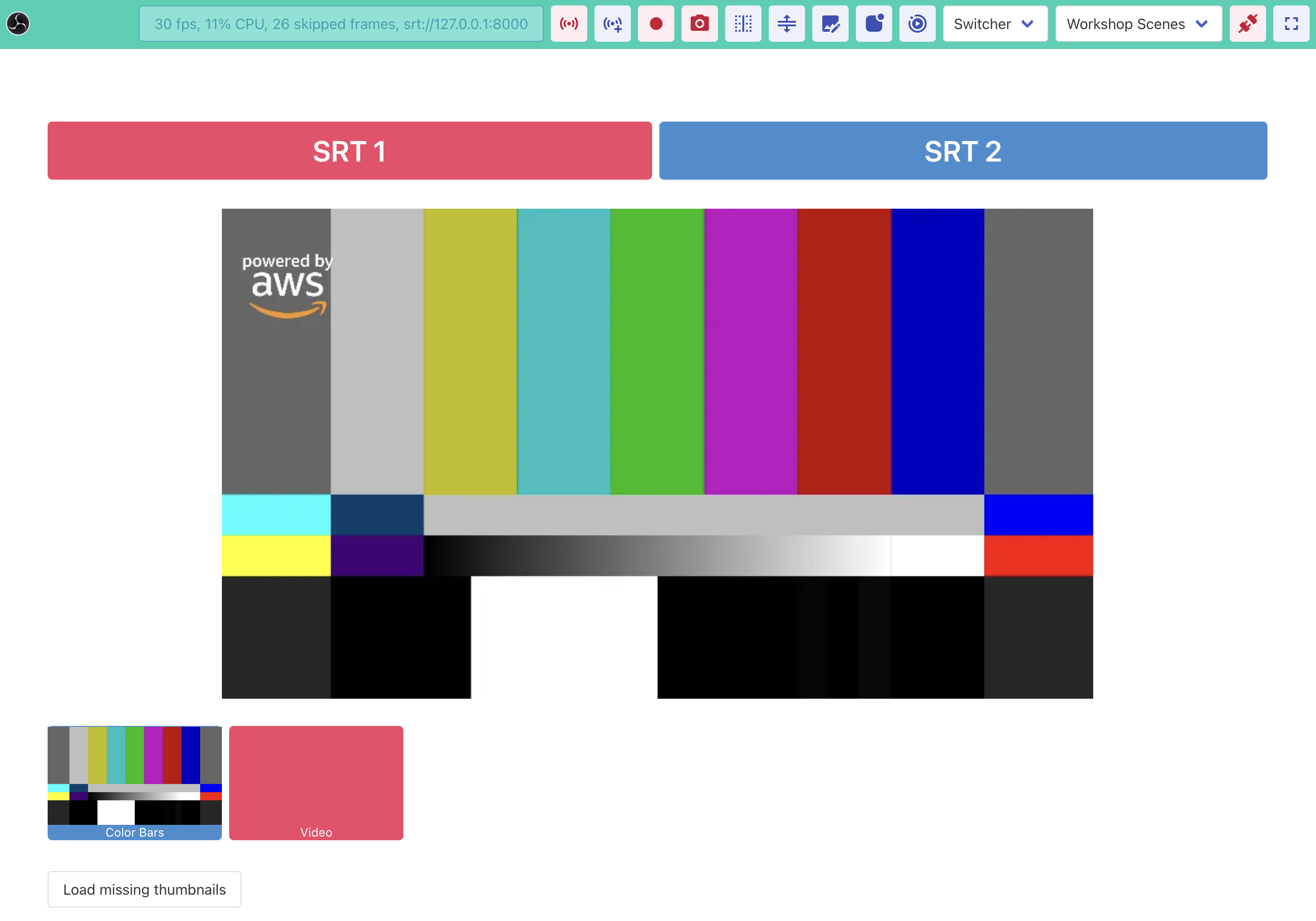
You will see the interface below.
-
Let’s configure the switcher to send program out to our distribution MediaConnect flow.
Click the Edit Stream Server URL button.

Enter
srt://{distribution-flow-private-ip-address}:8000wheredistribution-flow-private-ip-addressis the source private IP address of our distribution MediaConnect flow.
Click the Edit Stream Server URL button again to close the editor.

-
Verify the stream address is correct on the status window. Now click the Stream button to start streaming.

You should now see the stream connection timer incrementing.

-
Go back to the MediaConnect service page and select the Distribution flow.
Validate that you see healthy Source health metrics
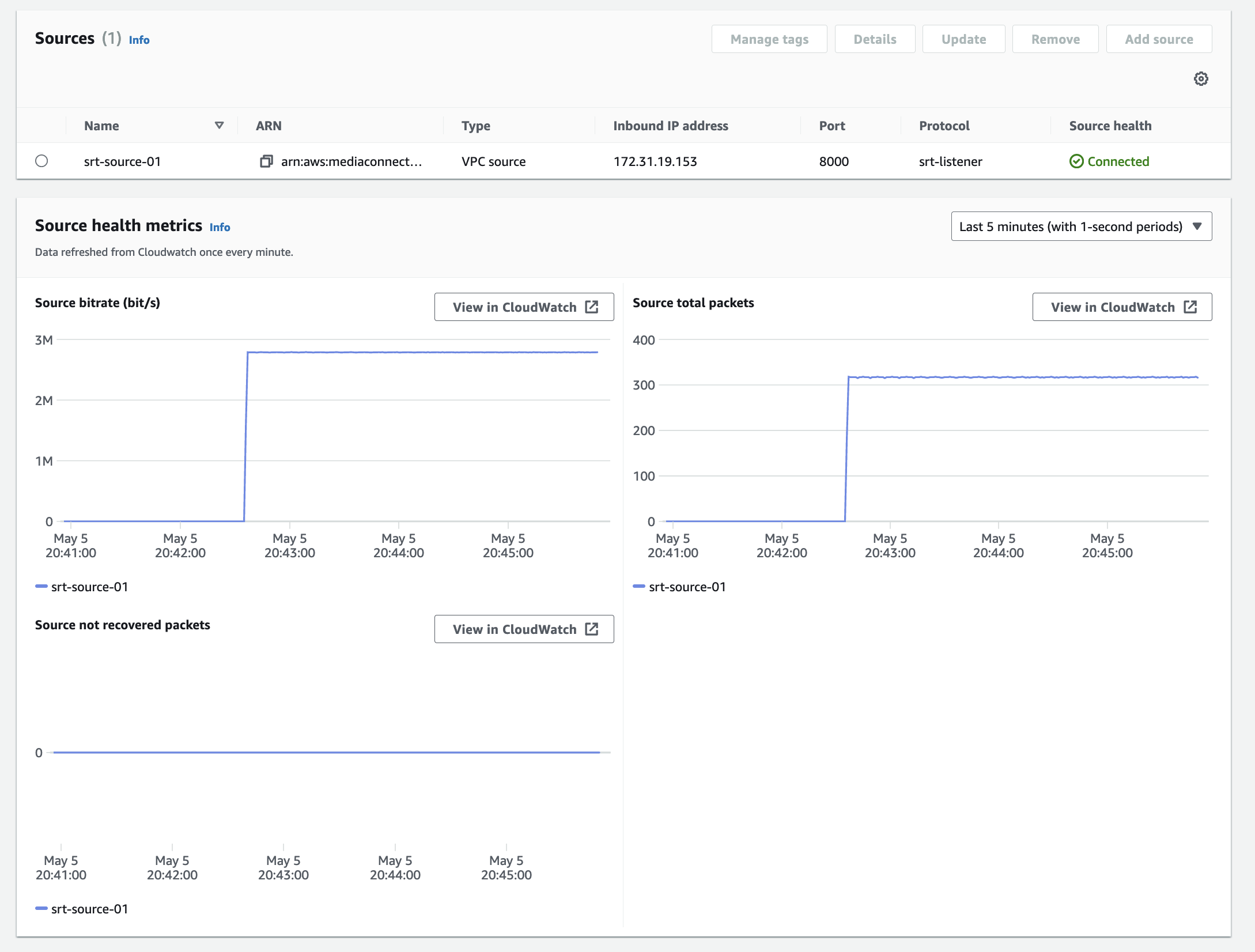
Congratulations, you have finished the first part of your signal path, the connection from your switcher to the workshop destination.